Tourlog guide
Shows
A show is one date at one venue. This page covers the season list, creating shows, and archiving.
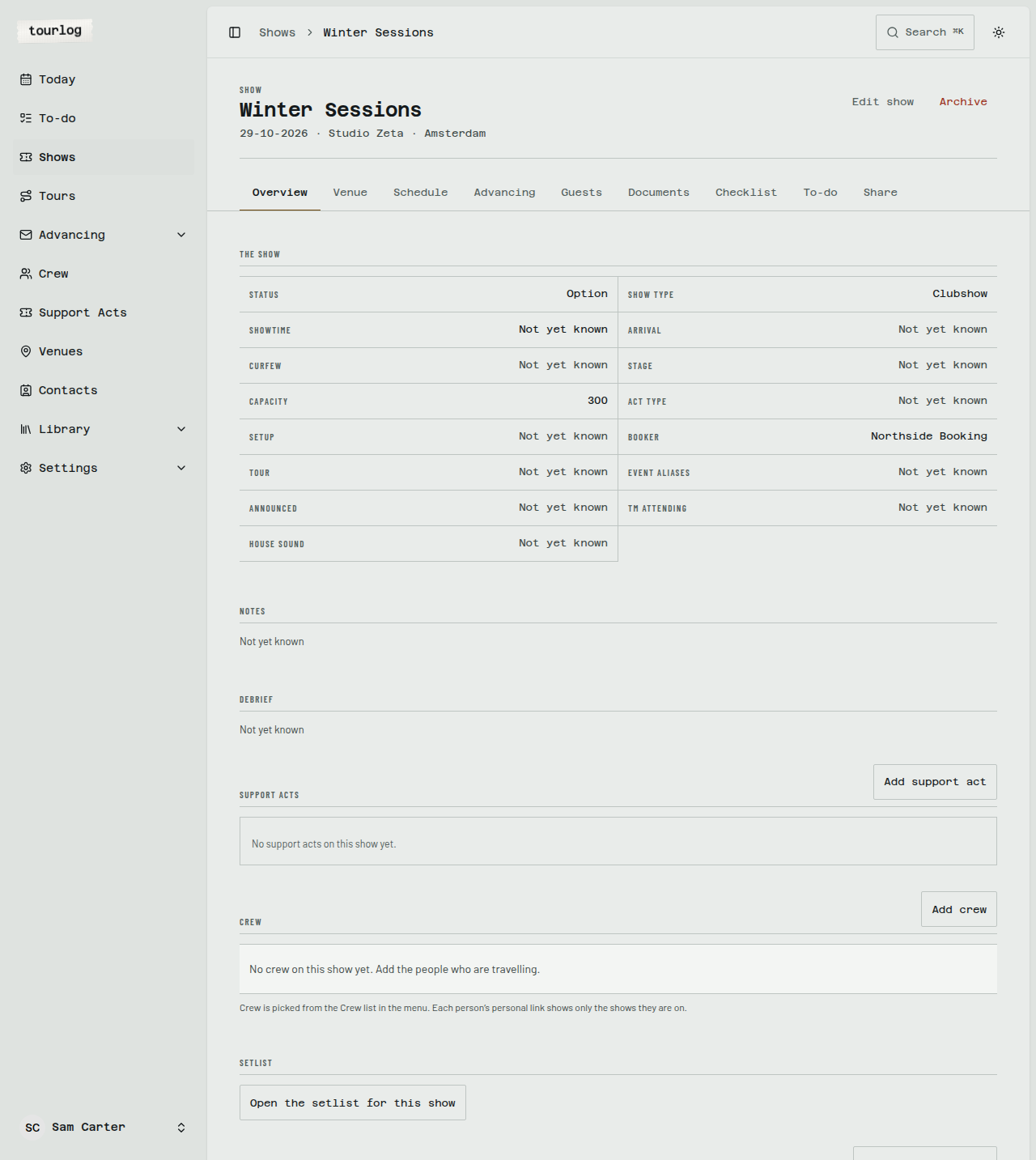
For everything inside a show, see The show page.
The season list
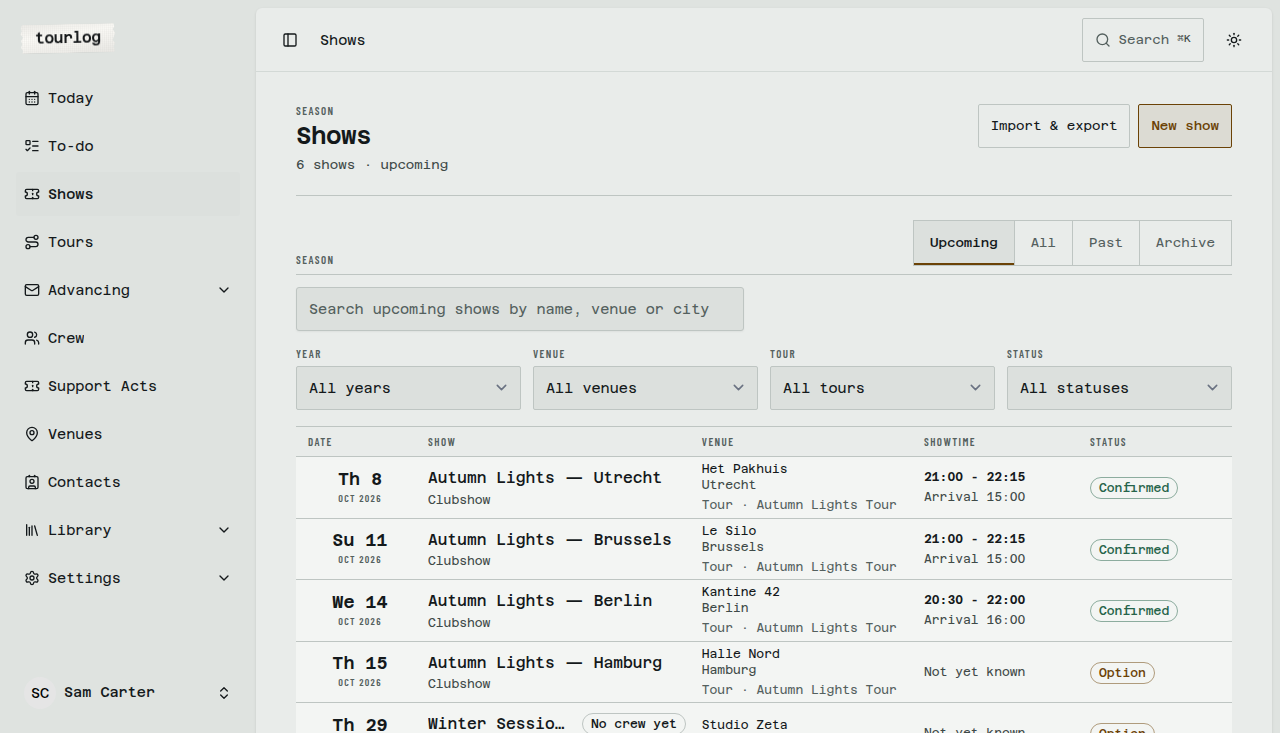
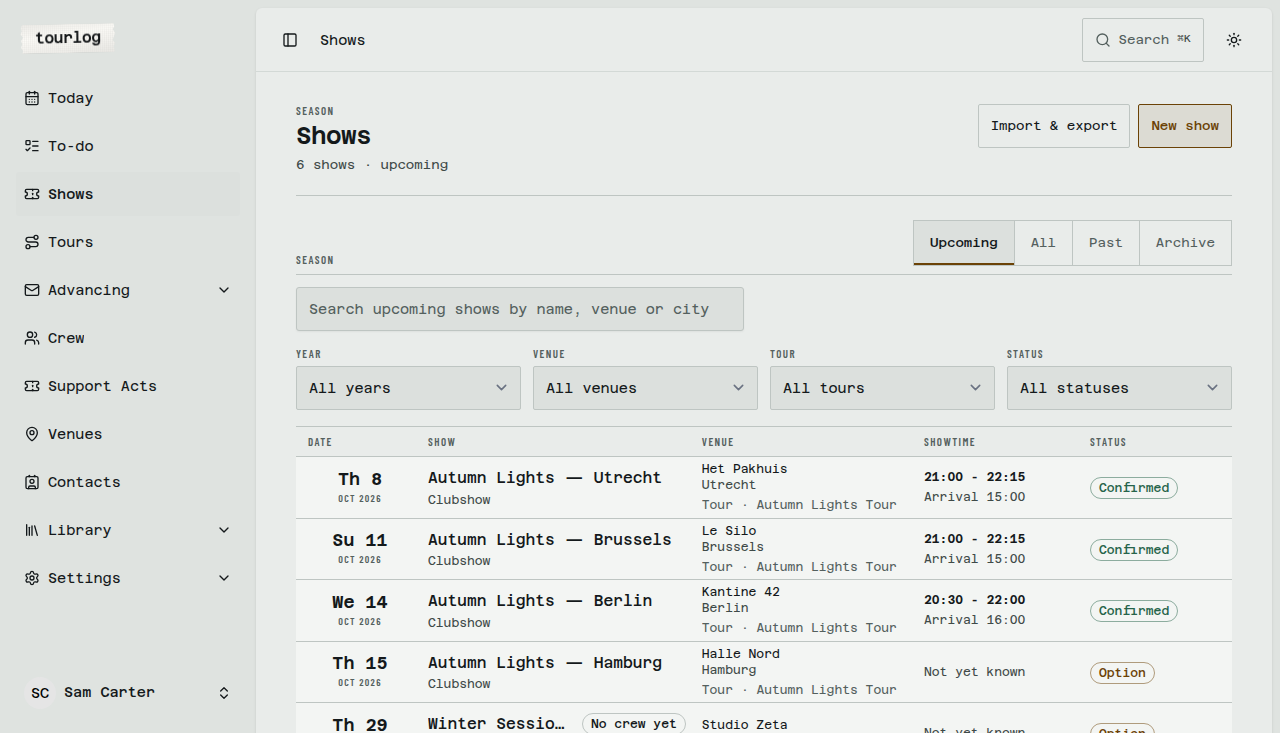
Shows lists your season.
What you'll see
Each row has Date, Show, Venue, Showtime and Status. A No crew yet badge marks an upcoming
Option or Confirmed show with nobody assigned. Support-act people don't count.
What you can do
- Switch the view:
Upcoming,All,PastorArchive. - Filter by year, venue, tour and status.
- Search by name, venue, city, tour, type, stage or date. Results update as you type.
- Create:
New showandAdd several at once. - Import and export: the
Import & exportmenu. See Importing.
Tip:
Export this selection as CSVexports exactly the rows you have filtered. Filter to one tour,
then export it.
Creating a show
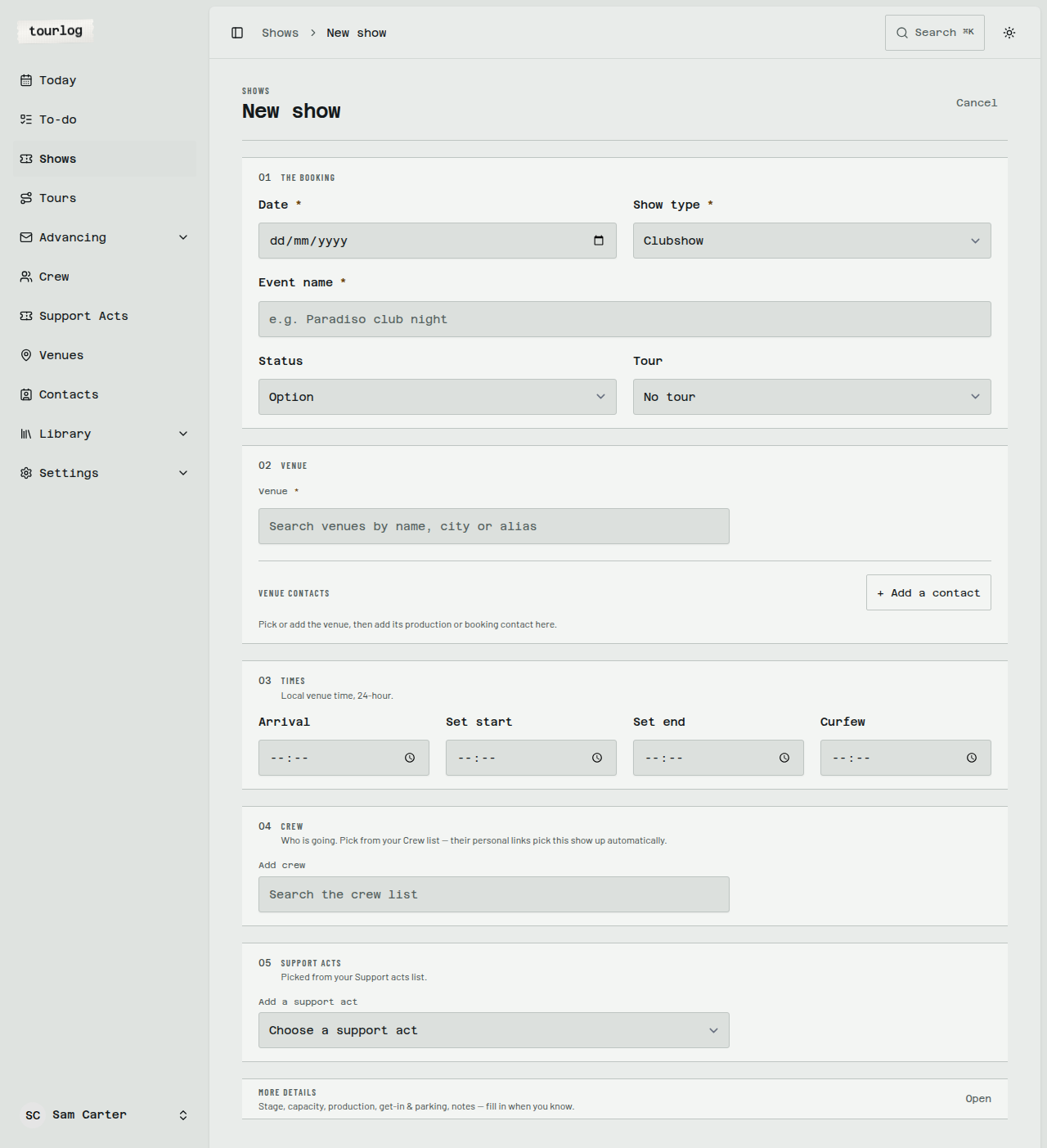
- On Shows (or Today), tap
New show. - Under The booking, enter the
Date. - Enter the
Event name. - Choose the
Show type. - Leave
StatusonOption, or change it. Tour is optional. - Under Venue, search for the venue by name, city or alias.
- If it isn't there, type a new venue name, city, country and address instead.
- Under Times, enter
Arrival,Set start,Set endandCurfewif you know them. - Under Crew & support acts, tick the people who are travelling.
- Tap save.
The form saves everything or nothing. Required fields are marked with an amber *: Date, Event name,
Show type and Venue.
Optional details
Under More details (folded) you can fill in Stage, Capacity, Act type, Setup, Booker,
Event aliases, Announced, TM attending, House sound, a different Get-in address and Parking address with notes, Notes, and Debrief. Yes/no fields have three states: Not yet known, Yes
and No.
Tip:
Event aliasesare other names the show goes by. They help match incoming mail and CSV rows
to the right show.
Crew call times
When you tick crew on the form you can give everyone one shared Call time and set each person's Role on this show. You can change each person's call time later on the show's Overview.
Adding several shows at once
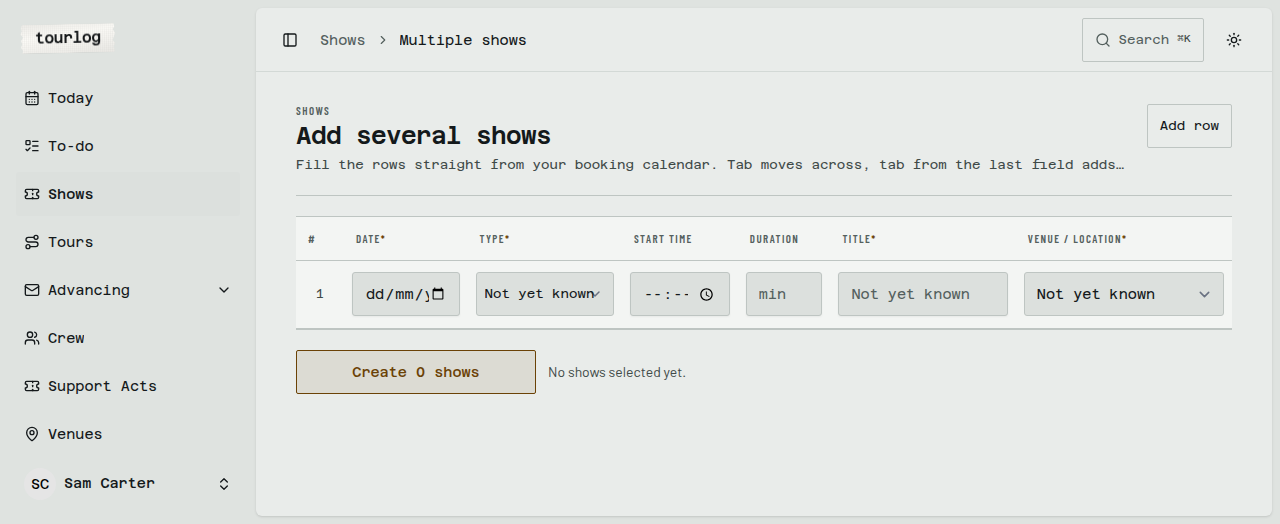
Use this when you have a list of dates to enter quickly.
- On Shows, tap
Add several at once. - In the first row, enter
Date,Type,Start Time,Duration,TitleandVenue / Location. - Press
Tabto move across. - Press
Tabfrom the last field to add a new row. - Press
⌘Enter/Ctrl+Enterto create all rows.
Tip: The grid is for fast entry. Crew, schedule and details come later on each show.
Editing a show
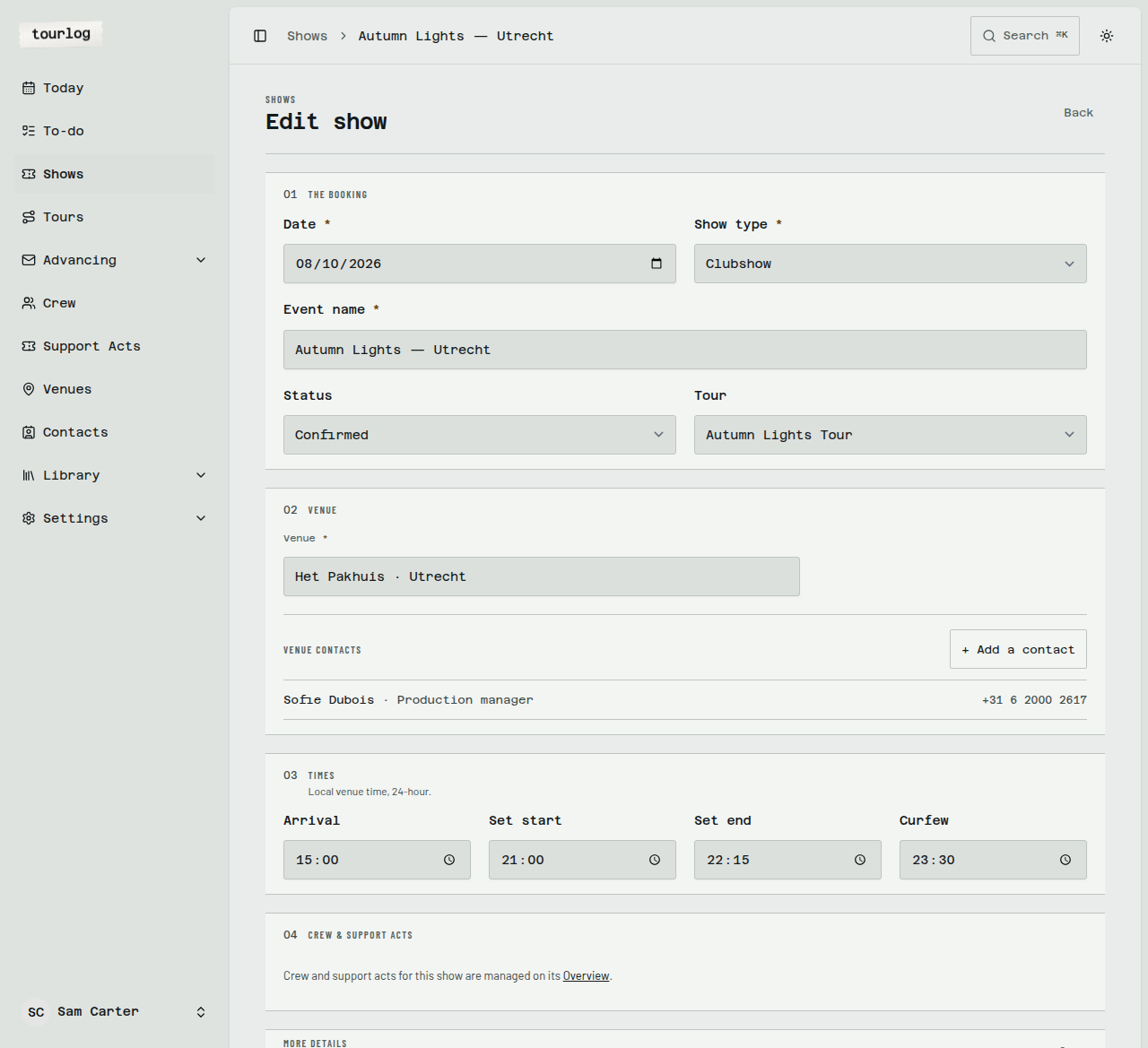
Open the show and tap Edit show. It is the same form as creating. Crew and support acts are managed
on the Overview tab instead.
Status
| Status | Meaning |
|---|---|
Option |
Pencilled in. Can't have a show link. Appears in calendars as tentative. |
Confirmed |
Booked. Can have a show link. |
Completed |
Done. Keeps its link. |
Cancelled |
Called off. The reader says This show is cancelled. |
Archiving a show
- Open the show.
- Tap
Archive.
The toast says {venue} {date} moves to the archive. You can always find it there. An archived show
keeps its crew, schedule, files and history, stays in its venue's play history, and is read-only until
you restore it.
To bring it back, open Shows, choose Archive, find the show and tap Restore.
Deleting for good
In the Archive view only, Delete permanently removes a show and the rows that only exist because of
it (its schedule and files). It asks you to confirm. It refuses while something else still depends on
the show.
Tip: When in doubt, archive. Nothing is lost and you can restore it later.
Today
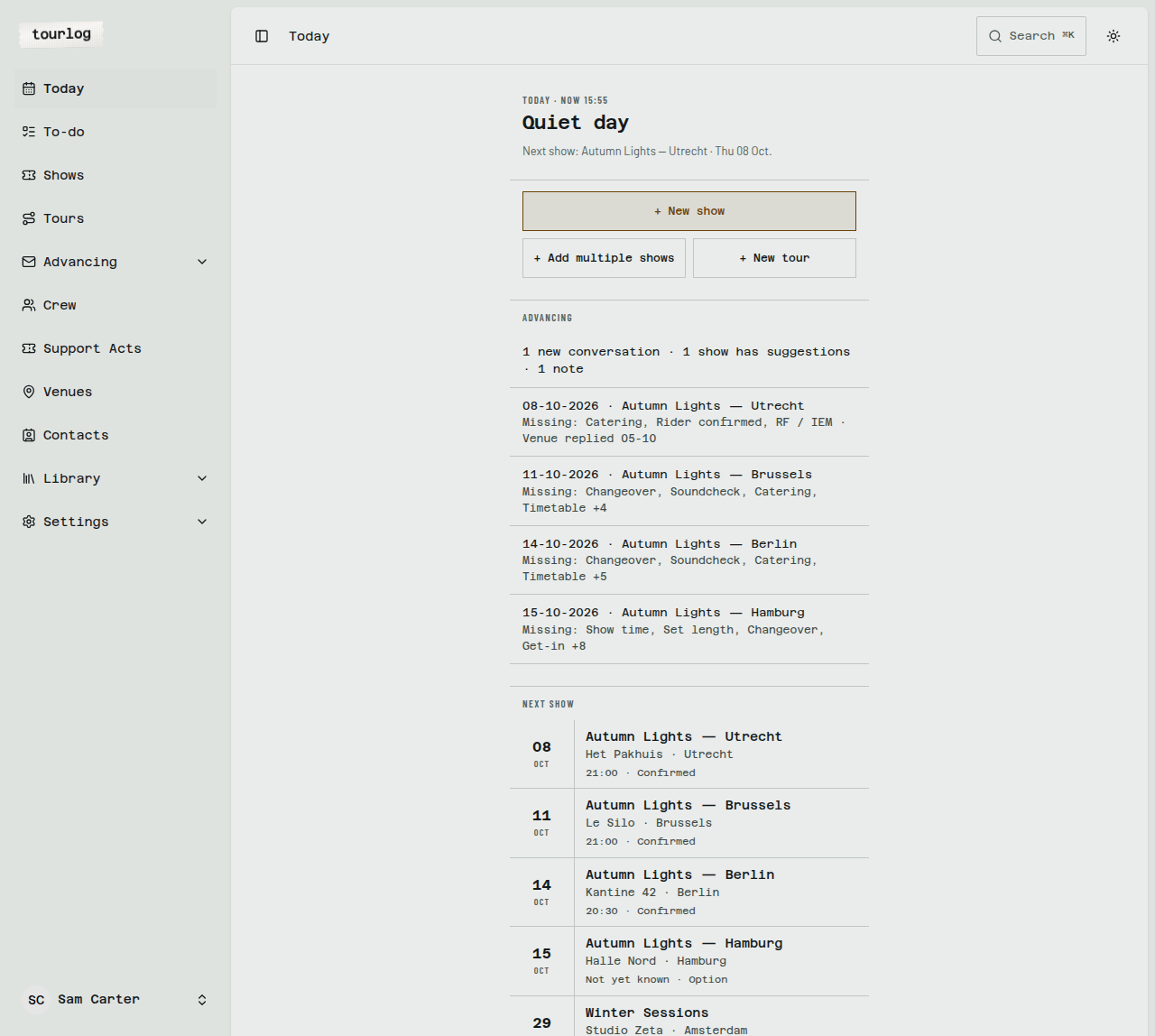
Today is your home page.
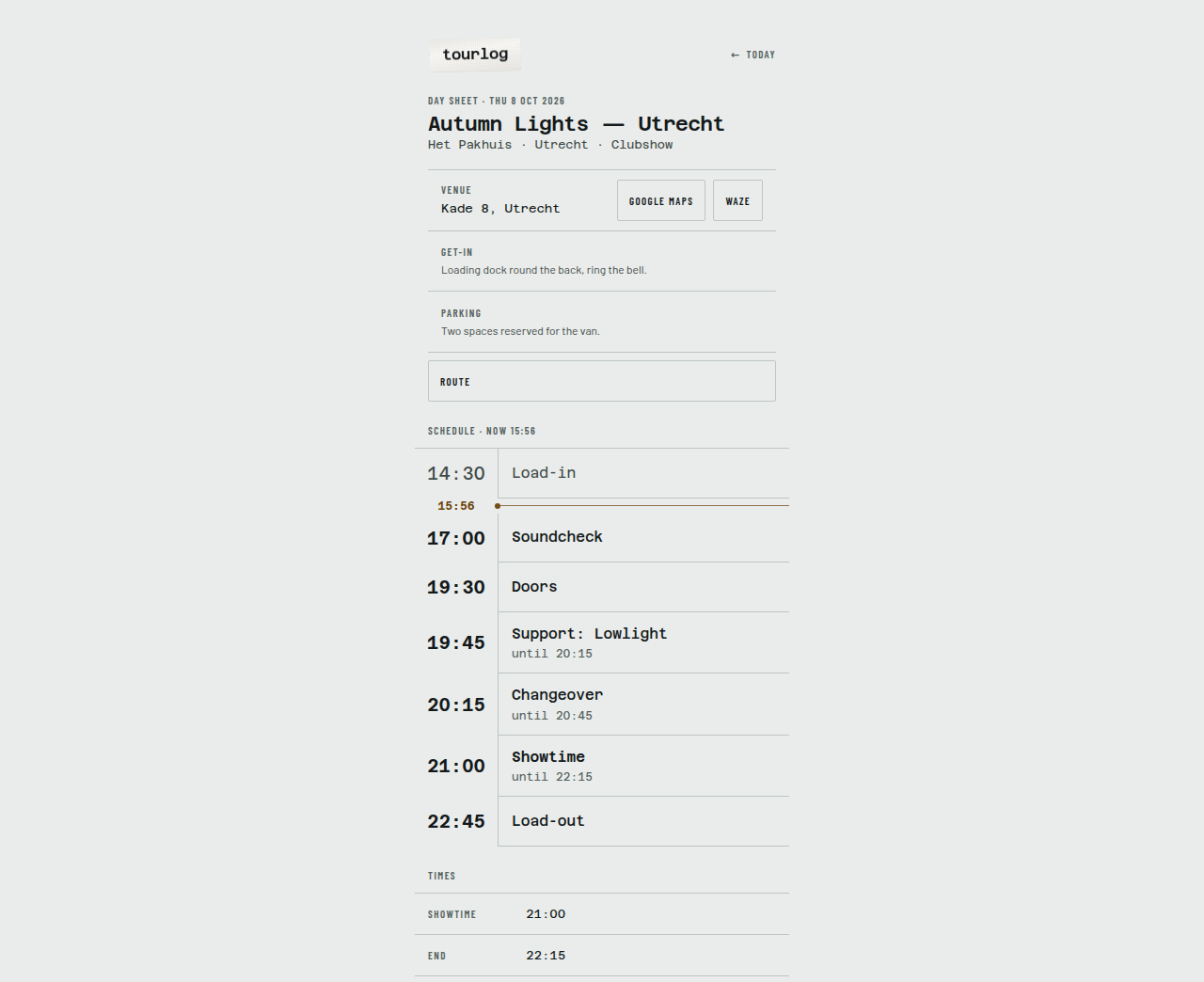
- It lists today's shows (venue, times, type, status), each with
Open day sheet →, the same one-column
sheet crew read. - Between two shows on the same day it shows
↓ drive time. - On a day without a show you see
Quiet dayand the next show. - The
Actionsbox has+ New show,+ Add multiple showsand+ New tour. - The Advancing block shows what is waiting for you, and upcoming shows within 21 days that still
miss essential details. - Below that are your upcoming shows.
To-do
To-do in the sidebar lists every show that has to-do lines or a notepad, upcoming first.
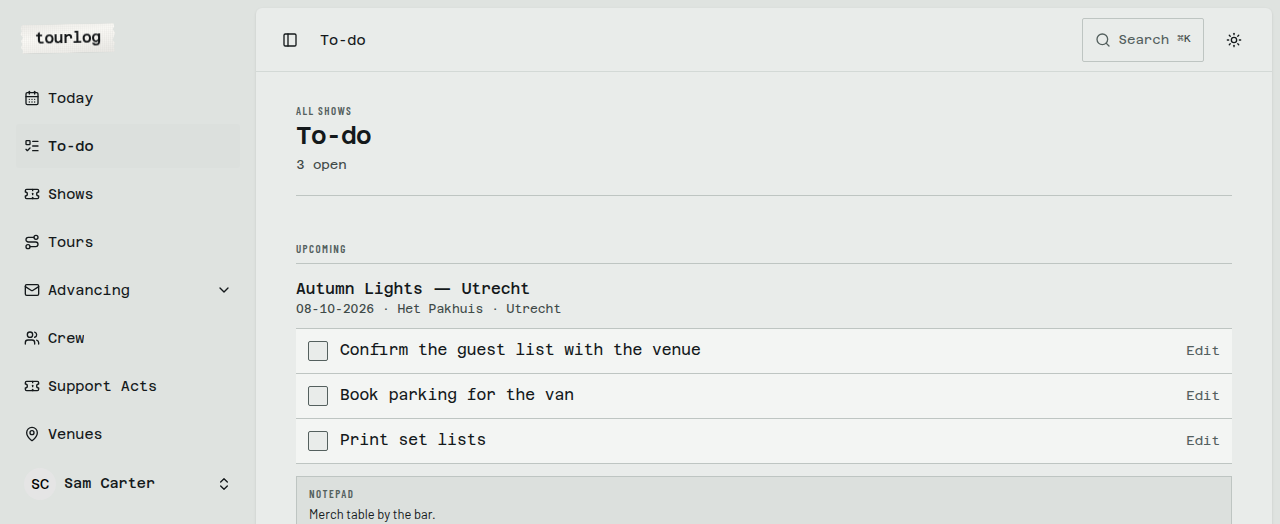
You can tick and edit lines here. You add them on a show's To-do tab. See The show page.