Tourlog guide
Advancing
Advancing is collecting the practical details of a show from the venue: when you can load in, where to
park, who the day-of contact is, what catering looks like. Tourlog doesn't replace your email. It reads
the advancing mailbox, works out what the venues told you, and proposes changes. You accept, edit or
dismiss each one.
Status: the mail reader described on this page is new, and is switched off until it is set up for
your installation (see Setting up the mail reader). Everything else in
Tourlog works without it.
How it works
Venue emails the advancing mailbox
        ↓
Tourlog files the message in a conversation
        ↓
YOU pick which show the conversation is about          (Review › Which show?)
        ↓
Tourlog reads the new messages and proposes changes
        ↓
YOU accept, edit or dismiss each proposal              (Review)
        ↓
The show is updated. Every accepted change can be undone.
Three rules hold throughout:
- Tourlog never sends email. You talk to venues in your normal mail app. Tourlog only reads the
mailbox. - Nothing changes until you accept it. Proposals are only suggestions.
- You can undo. Every change you accepted can be taken back.
The advancing mailbox
Ask venues and bookers to write to one dedicated advancing address, and read and reply there in your
usual mail app. Tourlog watches that mailbox, both the inbox and the sent folder, read-only. It
never moves, deletes or marks anything in it. New mail appears in Tourlog within a few minutes.
Tip: Keep replying from your mail app as you always do. Tourlog sees your sent mail too, so it
knows whose turn it is.
Review
Advancing › Review is everything Tourlog is waiting on. The sidebar badge counts new conversations,
pending proposals and open notes.
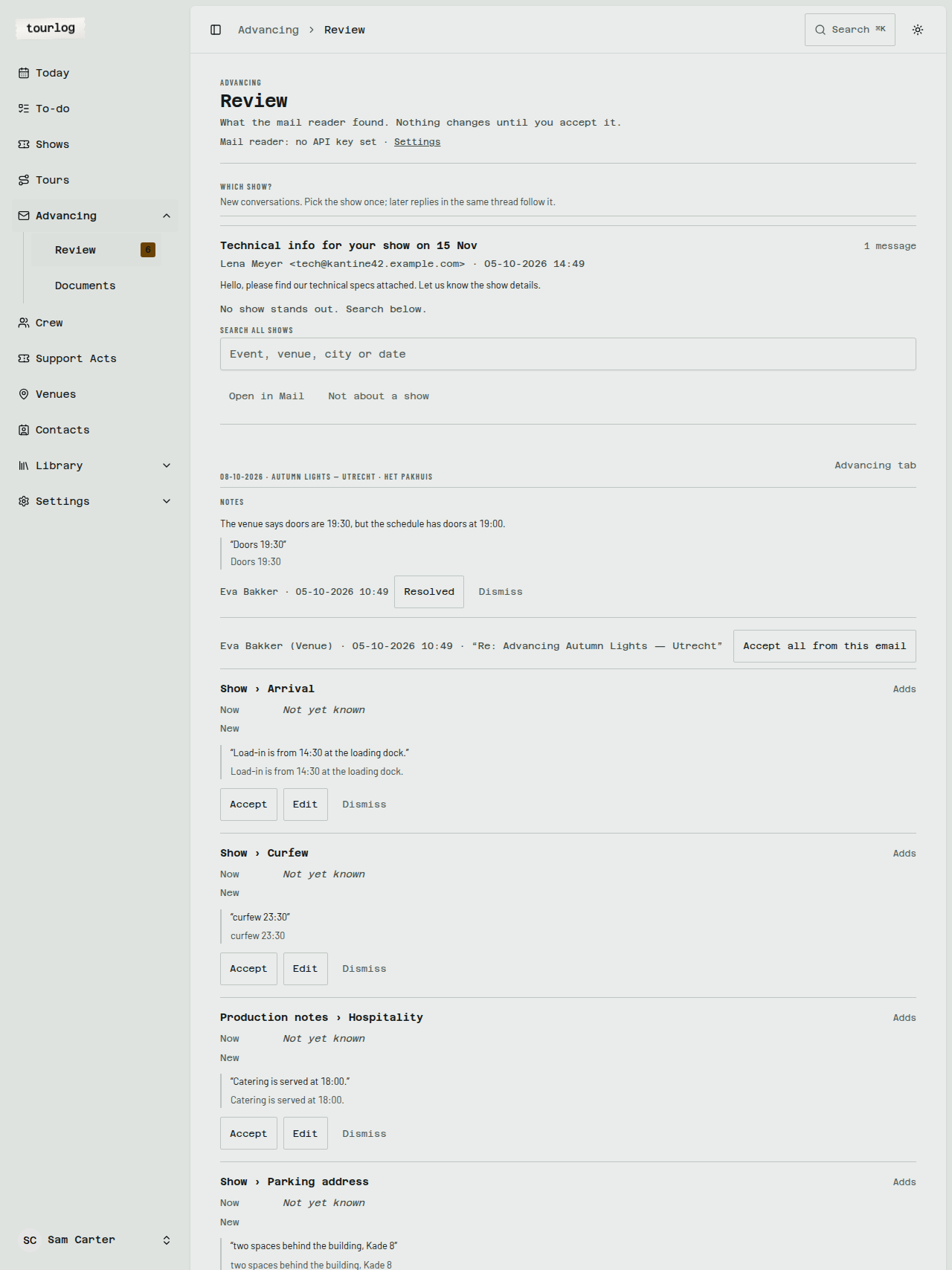
Nothing to do? The page says Nothing to review.
Step 1: Which show?
A new conversation first appears under Which show?, with its subject, sender, number of messages and
a preview. Tourlog suggests shows that fit (from the subject, a booking number, dates in the message, the
sender's domain and the venue). It does not guess silently. You pick.
How to: match a conversation to a show
- Under Which show?, find the conversation.
- Tap the suggested show that fits.
- If none fits, type in
Search all shows(event, venue, city or date) and tap the right result.
Later replies in the same email thread follow that show automatically. A new email that only has the
same subject (a new thread, or a portal's automatic mail) gets its own card, with that show suggested
first: one tap, and you decide.
When it isn't about a show
Tap Not about a show. A conversation belongs to one show or to none. A thread covering several shows
goes here, and you handle it by hand. Open in Mail jumps to the original message.
Changed your mind? Open Not about a show at the bottom of Review, search for the show and tap it.
The conversation is matched after all, and anything that was set aside with it comes back.
Tip: Picked the wrong show? On the show's Advancing tab, under Conversations, tap
Change show.
Step 2: Proposals
Once a conversation has a show, Tourlog reads its messages and groups proposals per show, soonest
show first. Each email gets a header such as Name (Venue) · date · "subject", and each proposal is a
card.
A proposal card shows:
| Part | Meaning |
|---|---|
Title, for example Show › Arrival |
What field would change |
| Now | What Tourlog has today (Not yet known if empty) |
| New | What the email says |
| From | Who said it, and which side they are on (venue, booker, management) |
| Quote | The exact sentence from the email, with an English translation if it was in another language |
How to: accept a proposal
- Read Now, New and the quote.
- Tap
Accept.
The field is updated on the show. The card moves to the show's history.
How to: change a proposal before accepting
- Tap
Edit. - Change the value (a time, an address, a yes/no, a pass type, a contact's details…).
- For details a venue and a show both hold, such as an address or capacity, choose
Save on the venue
orSave on this show only. - Confirm.
How to: reject a proposal
Tap Dismiss.
How to: accept everything from one email
When an email has several proposals, tap Accept all from this email. Check the cards first.
How to: undo
Open the show's Advancing tab, find the accepted change under History and tap Undo. The field
returns to its previous value.
What Tourlog can propose
| Kind | Examples |
|---|---|
| Times | Arrival, set start, set end, curfew; schedule rows for load-in, soundcheck, doors, showtime, changeover and load-out, including times after midnight and tbc |
| Show and venue facts | Stage, capacity, get-in and parking addresses and notes, house sound, a Stager link |
| Production notes | One-line notes under Technical, Hospitality, Parking, Merch, Content or Management |
| People | Support acts, guest-list entries, contacts (a name and address seen in the headers can become a contact proposal) |
| Documents | A message attachment filed as a show document (not visible to crew) |
| To-dos | A to-do, with an optional due date |
Requests from a booker or management are proposals too, tagged From Booker or From Management.
A proposal always carries a quote. If the email doesn't say it, Tourlog doesn't propose it.
Notes
Sometimes an email contradicts what you have. Tourlog adds a Note, for example "The venue says doors
are 19:30, but the schedule has doors at 19:00." Tap Resolved when you have dealt with it or Dismiss
to hide it.
Not read yet
Messages Tourlog could not read (or hasn't yet) wait under Not read yet as could not be read or
waiting. Tap Retry. With the mail reader off, the message stays in the list and is read once the
reader is on again. If a message never reads, open it in your mail app and enter the details by hand.
A show's Advancing tab
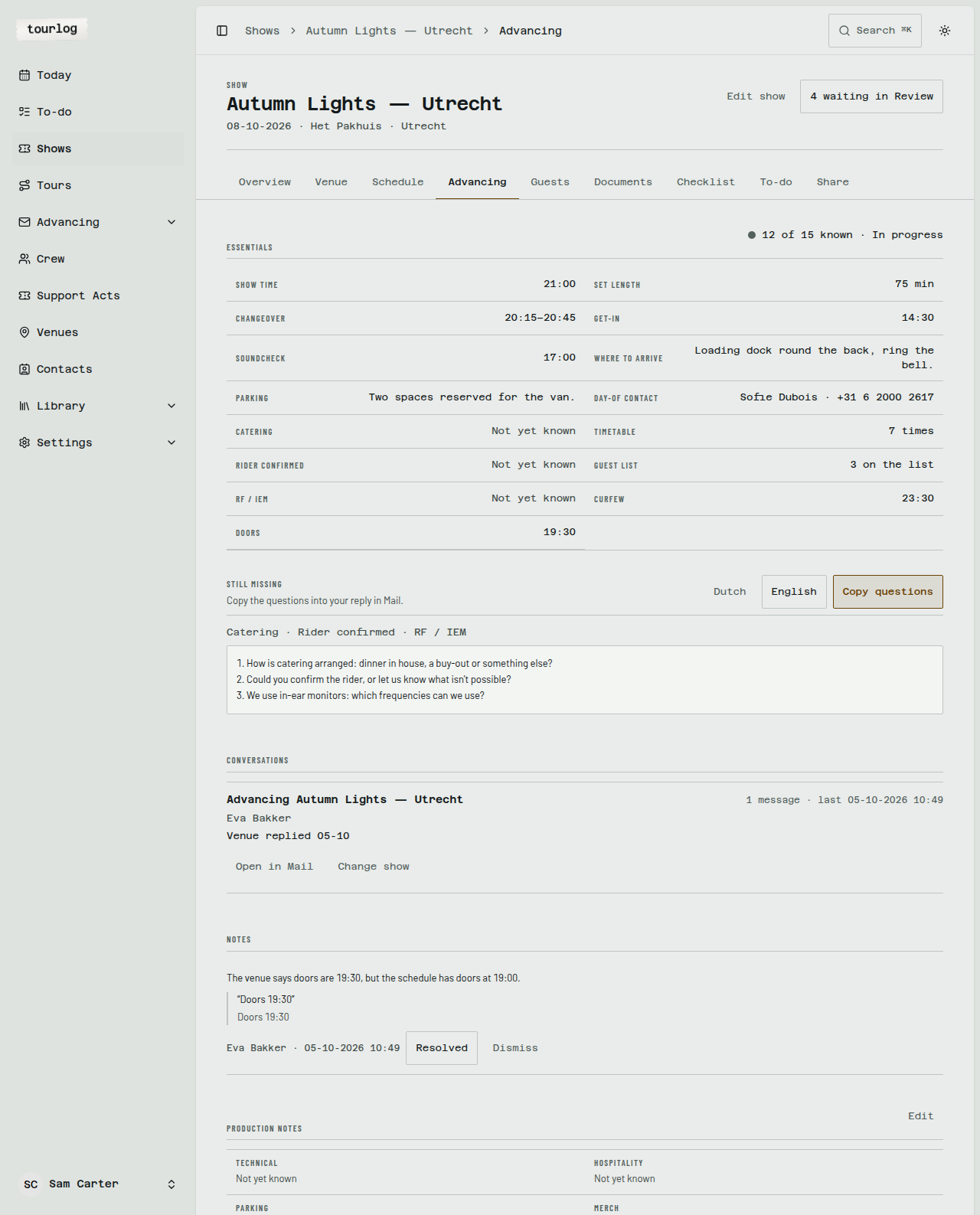
Open a show and choose Advancing.
Essentials
Tourlog counts the essentials you need for the day and shows how many are known (for example 12 of 15 known · In progress). The essentials are:
| Essential | Counts as known when… |
|---|---|
| Show time | The set start, or a timed showtime row, exists |
| Set length | Set start and end exist |
| Changeover | A changeover row has a time |
| Get-in | An arrival time, or a timed load-in row |
| Soundcheck | A soundcheck row has a time or a note |
| Where to arrive | The venue address plus a get-in address or note |
| Parking | A parking address or note, or Parking production notes |
| Day-of contact | A contact with a phone number whose role says day of show or production |
| Catering | Hospitality production notes |
| Timetable | Three or more timed schedule rows |
| Rider confirmed | A Rider confirmed: line in the Technical notes |
| Guest list | A Guest list: line in Hospitality notes, or a guest-list entry |
| RF / IEM | An RF/IEM: line in the Technical notes |
| Curfew | A curfew time |
| Doors | A doors row with a time (clubshows only) |
The status reads Not started (no conversation yet), In progress, or Done (every essential known).
Tip: The labelled lines (
Rider confirmed:,Guest list:,RF/IEM:) are what the essentials look
for. Accepting a proposal writes them for you, and you can type them by hand too.
Still missing
Lists the essentials not yet known, with ready-made questions.
How to: ask a venue for what's missing
- Under Still missing, choose
DutchorEnglishfor the language of the questions. - Tap
Copy questions. - Paste them into your reply in your mail app.
- Send the email yourself.
Checks
Flags times that don't fit together, such as a set that ends after curfew.
Conversations
Every conversation on this show, who wrote last (for example Venue replied 05-10), Open in Mail,
Change show, and Read this conversation.
How to: read older mail
Tourlog only reads mail received after the Read mail from date. To read an older conversation, open
the show's Advancing tab and tap Read this conversation.
Notes, History and Production notes
- Notes: see above.
- History: every proposal decided for this show, with
Undo. - Production notes: the Technical, Hospitality, Parking, Merch, Content and Management text for the
show. TapEditto type or fix lines yourself. Only you see these. They never appear for crew or
venues.
Today and advancing
Today has an Advancing block: new conversations, shows with proposals, open notes, and upcoming
shows within 21 days that still miss essentials. It also lists to-dos that fall due.
Setting up the mailbox
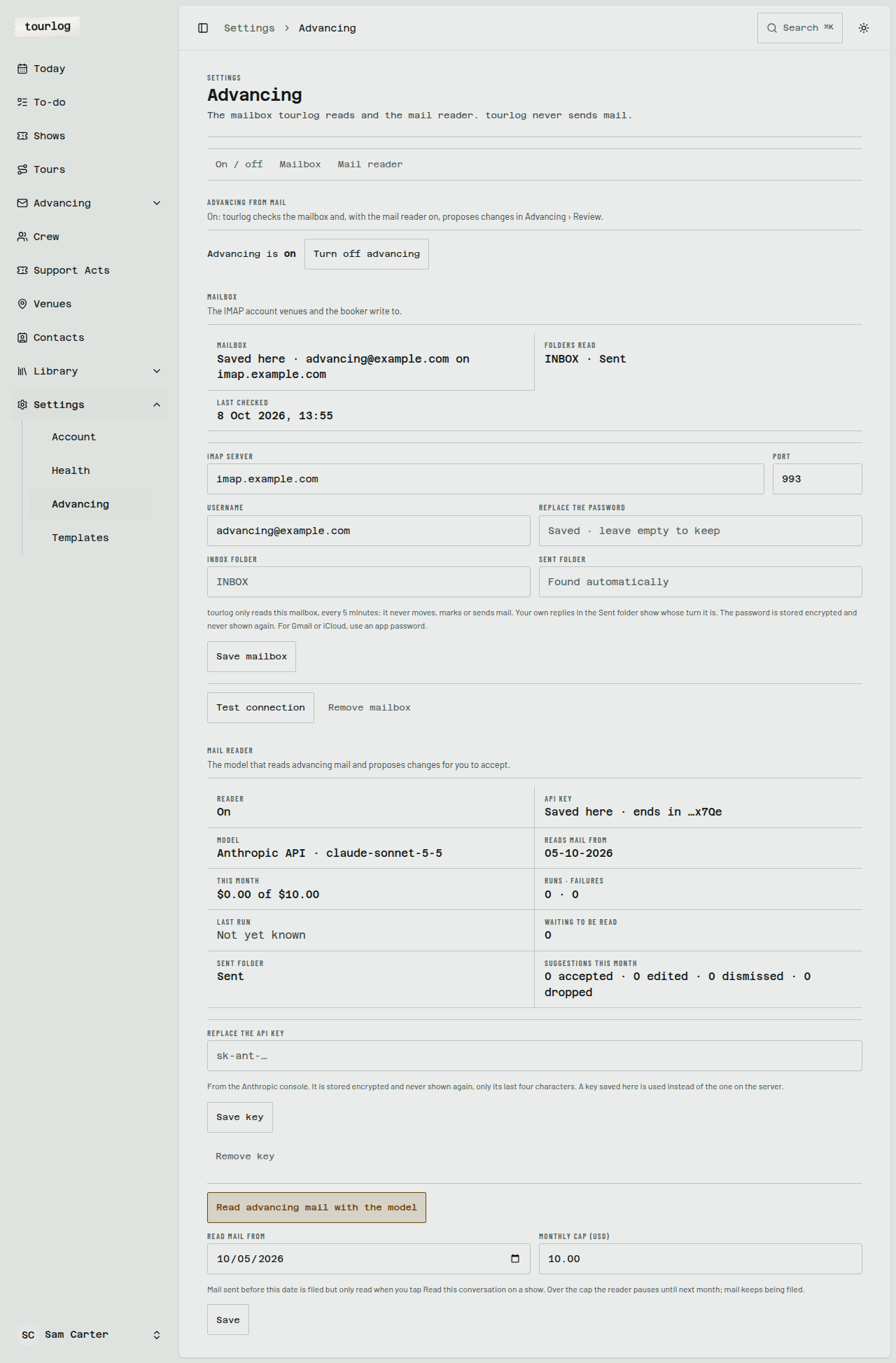
Everything for advancing lives in Settings › Advancing. Tourlog only reads the advancing
mailbox: it never moves, marks or sends mail, and it never sends anything from your address. You reply
from your own mail app.
- Open Settings › Advancing and go to Mailbox.
- Fill in
IMAP server,Port(usually 993),Username(usually the email address) andPassword.
For Gmail or iCloud, use an app password. LeaveInbox folderandSent folderempty unless your
mail provider uses other names. - Tap
Save mailbox, thenTest connection. It says which folders Tourlog will read, or why it
couldn't connect.
The password is stored encrypted and never shown again; leave the field empty to keep it. Tourlog checks
the mailbox every 5 minutes.
Turning advancing off
Prefer to advance entirely by hand? In Settings › Advancing, tap Turn off advancing. Tourlog stops
checking the mailbox and stops reading mail, and Review leaves the sidebar. Each show's Advancing tab
still lists what is missing, with questions to copy, and you fill in the details yourself. Nothing filed
earlier is deleted: Turn on advancing brings it back.
Setting up the mail reader
The reader needs a connected mailbox (above) and an API key for the reading service. Then:
- Open Settings › Advancing and go to Mail reader.
- Paste the key into
API keyand tapSave key. It is stored encrypted; afterwards Tourlog only shows
its last four characters.Remove keytakes it out again. - Tick
Read advancing mail with the model. - Set
Read mail from. Mail older than this date is filed but not read unless you ask. Switching the
reader on with no date starts it today. - Set
Monthly cap (USD). When the cap is reached, the reader pauses and mail keeps being filed. - Tap
Save.
The Review page says Advancing is off, Mail reader: no API key set, Mail reader: off or Mail reader: paused, monthly cap reached when it isn't reading.
Privacy
The reader is visible only to you, the signed-in admin. It is never shown to crew or venues and never
mentioned in emails, PDFs or reader pages. It only proposes, and it never sends mail or writes to a show
by itself. The mail is processed by a provider that doesn't train on it and deletes it within 30 days.