Tourlog guide
Tours, crew, support acts, venues and contacts
These are the building blocks you reuse across shows. Create each once, then pick them from lists.
Tours
A tour is an optional container for a run of shows.
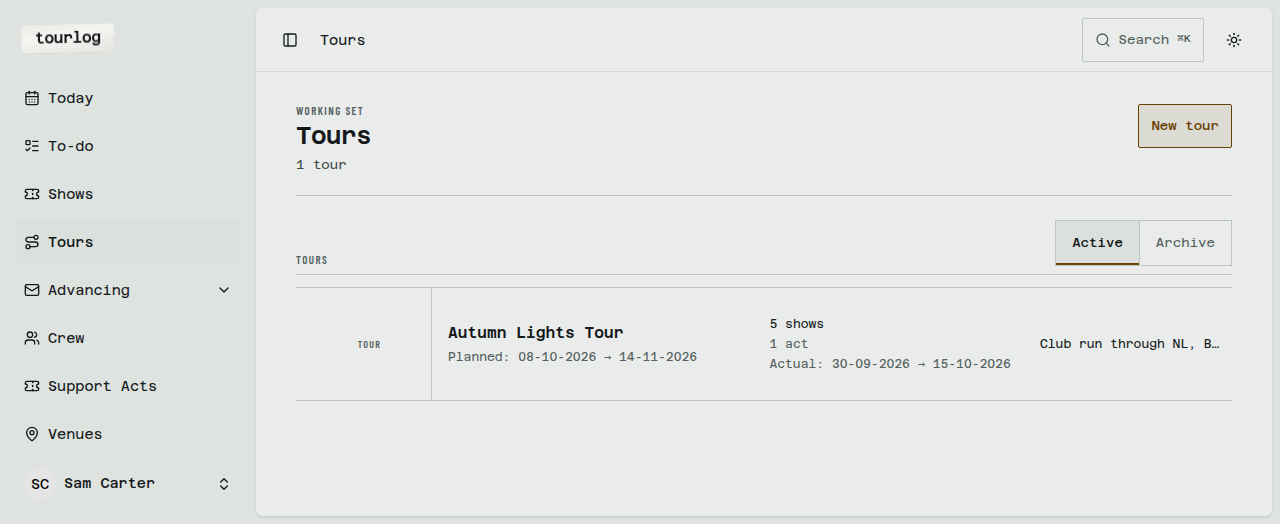
How to: create a tour
- Open Tours and tap
New tour. - Enter
Name. - Enter
Planned startandPlanned end. - Add
Notesif you like. - Save.
Link shows to a tour
Choose the tour in a show's Tour field (when creating or editing the show).
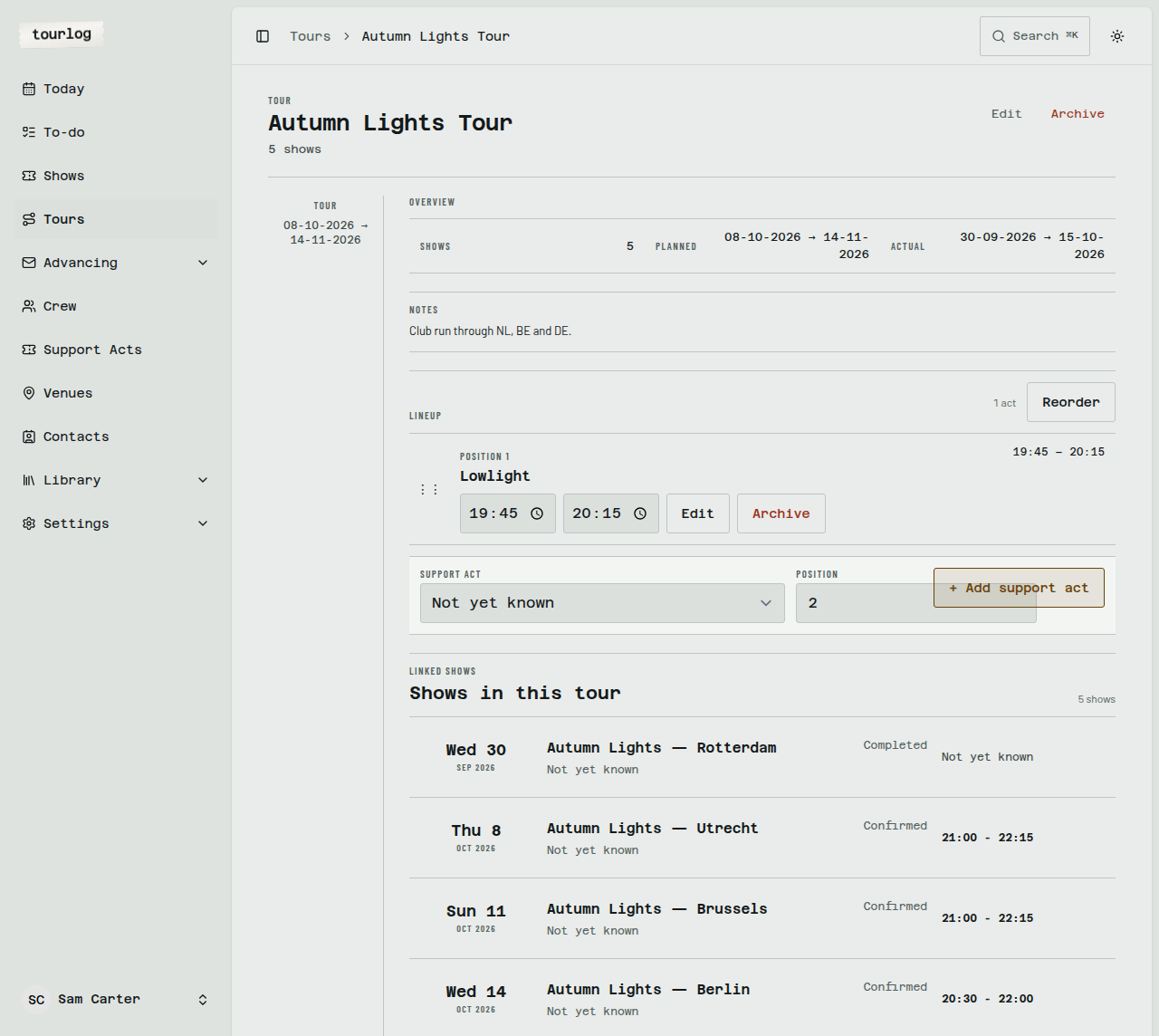
A tour page shows:
- Tour rollup: how many
Shows, thePlanneddates and theActualdates. - Lineup: the tour's support acts. Tap
+ Add support act, drag toReorder, set each act's set
start and end, orArchiveone. - Linked shows: every show on the tour.
Tip: Shows that follow the tour's lineup pick up its changes. A show whose support-act times you
set by hand does not.
Crew
The pool of people who travel.
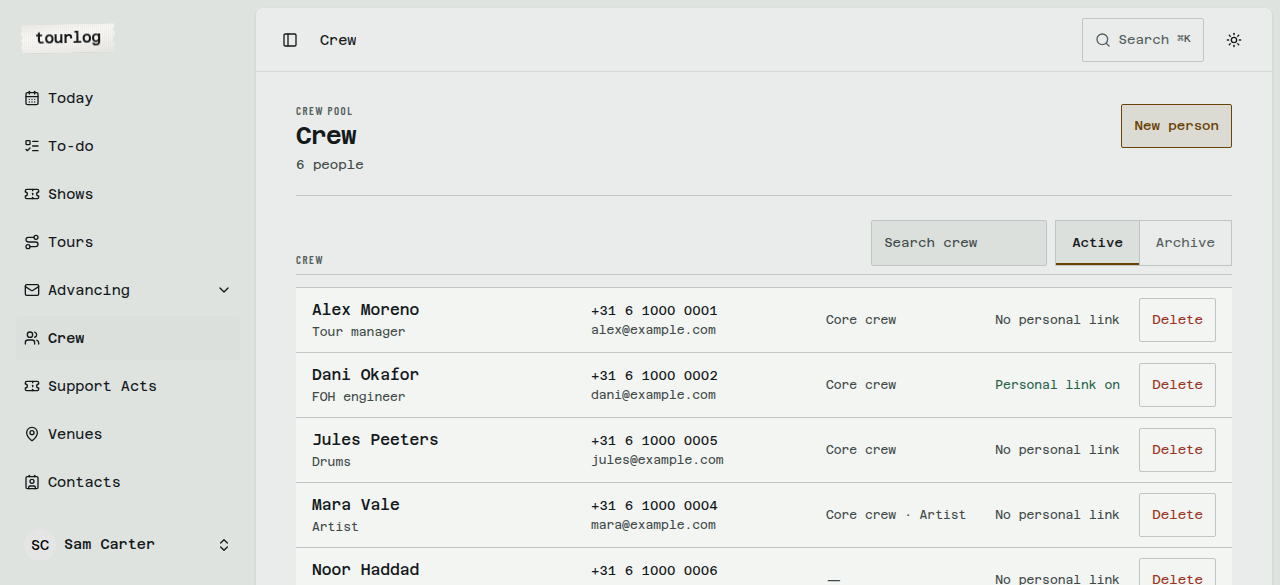
How to: add a person
- Open Crew and tap
New person. - Enter
Name. - Enter
Role. It is free text, with suggestions. - Enter
Phoneand/orEmail. - Optionally tick
Core creworArtist. - Save.
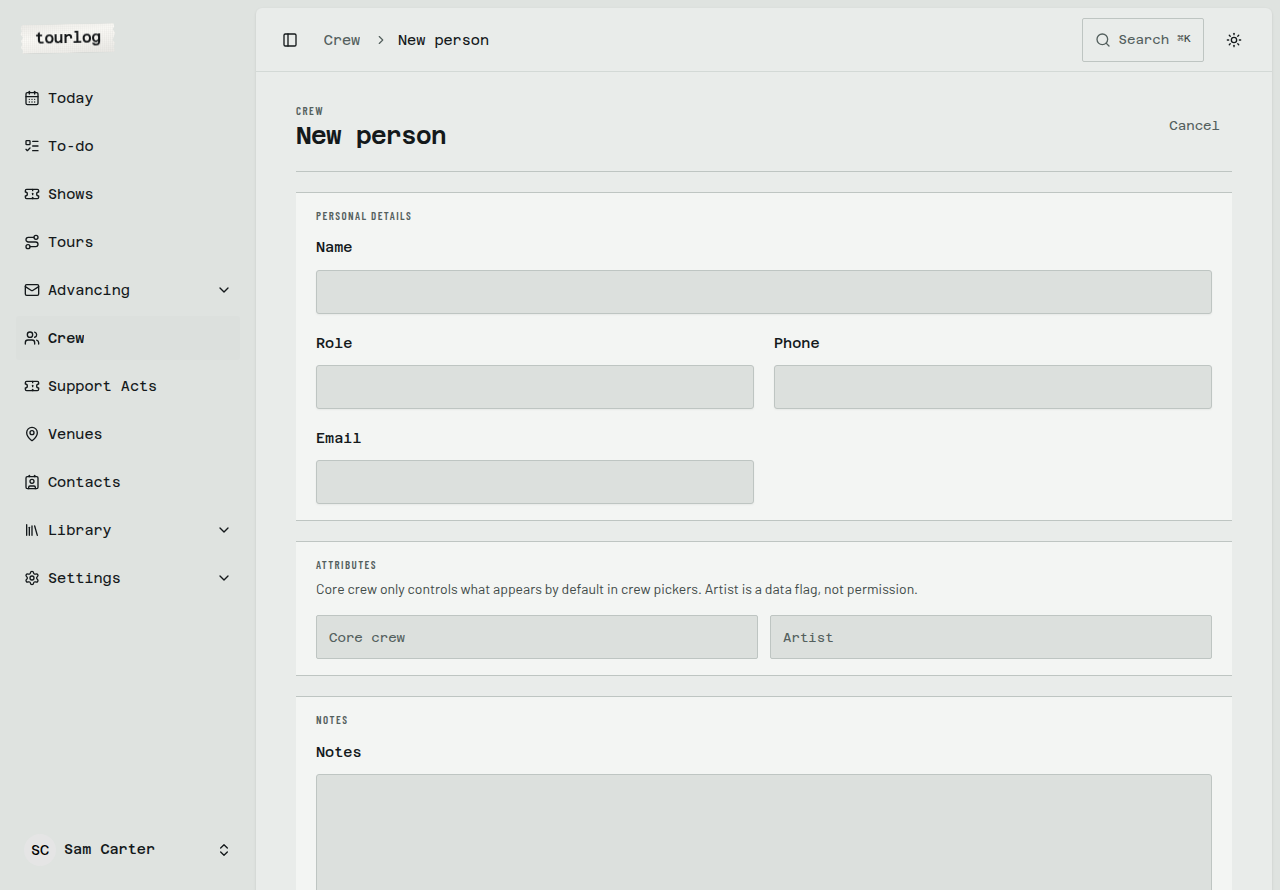
Core crew only decides who appears first in pickers. Artist marks the artist in the travel party.
Neither is a permission. Crew have no logins.
A person's page
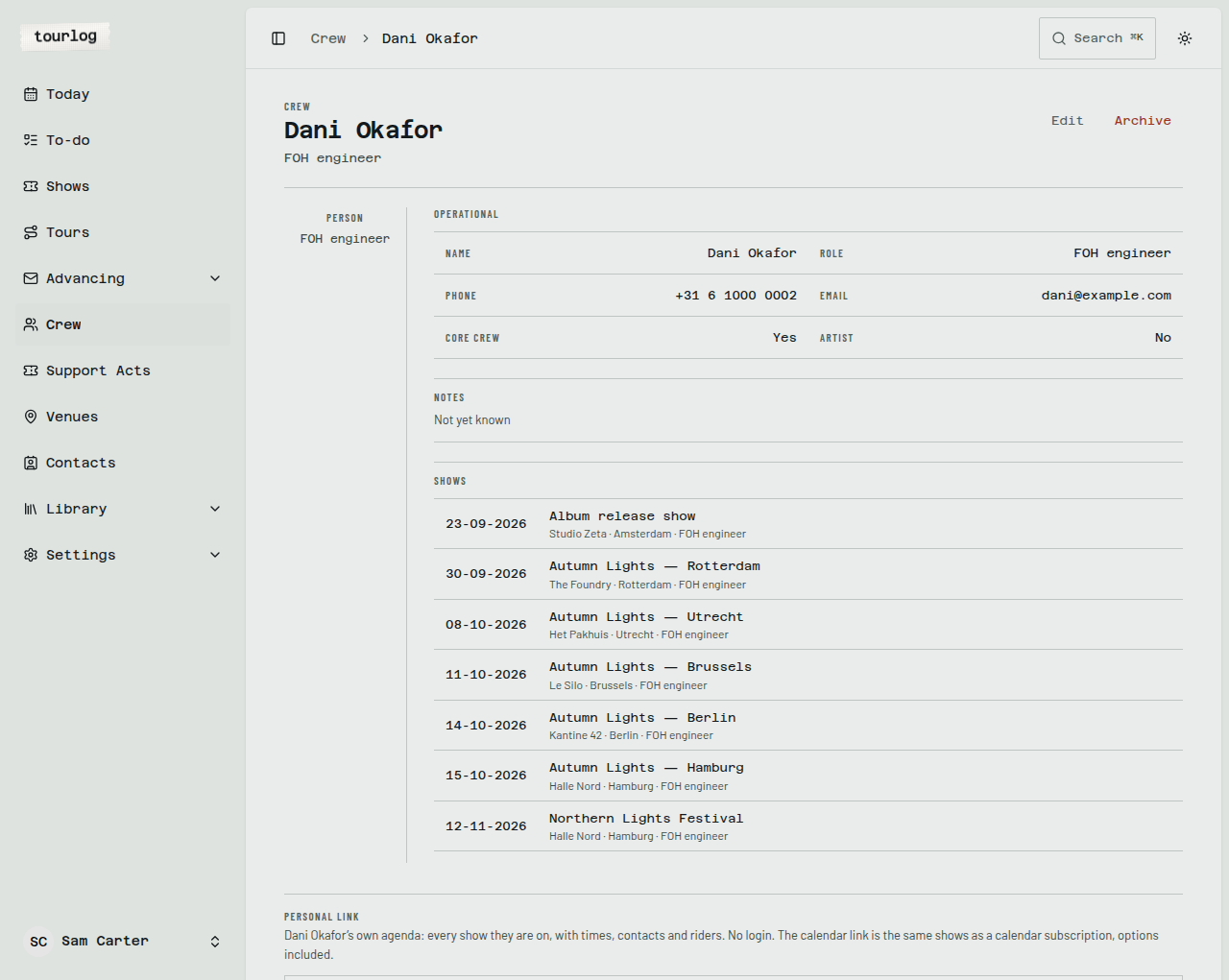
The page shows their details, every show they are on, and their Personal link.
How to: give someone their personal link
- Open the person under Crew.
- Tap
Create personal link. - Tap
Copy linkand send it (a messaging app works well). - Optionally tap
Copy calendar linkto send the calendar subscription.
One link covers every show that person is on, now and later. To take access away, tap Revoke link and
confirm. They lose access immediately. See Sharing.
Support acts
The opening acts, and the people who come with them.
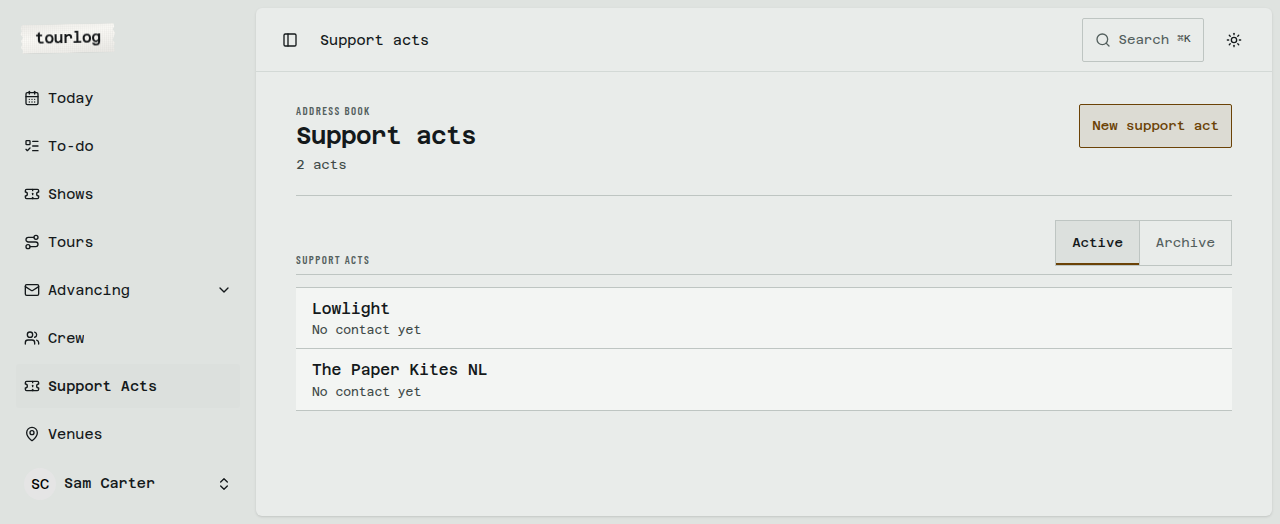
How to: add an act and its people
- Open Support Acts and tap
New support act. - Enter
Name(andNotes). Save. - On the act's page, under
People, choose a person from your Crew list. - Enter their
Role in this act. - Tap
Add to act. - Optionally tap
Make primary. There is one primary person per act.
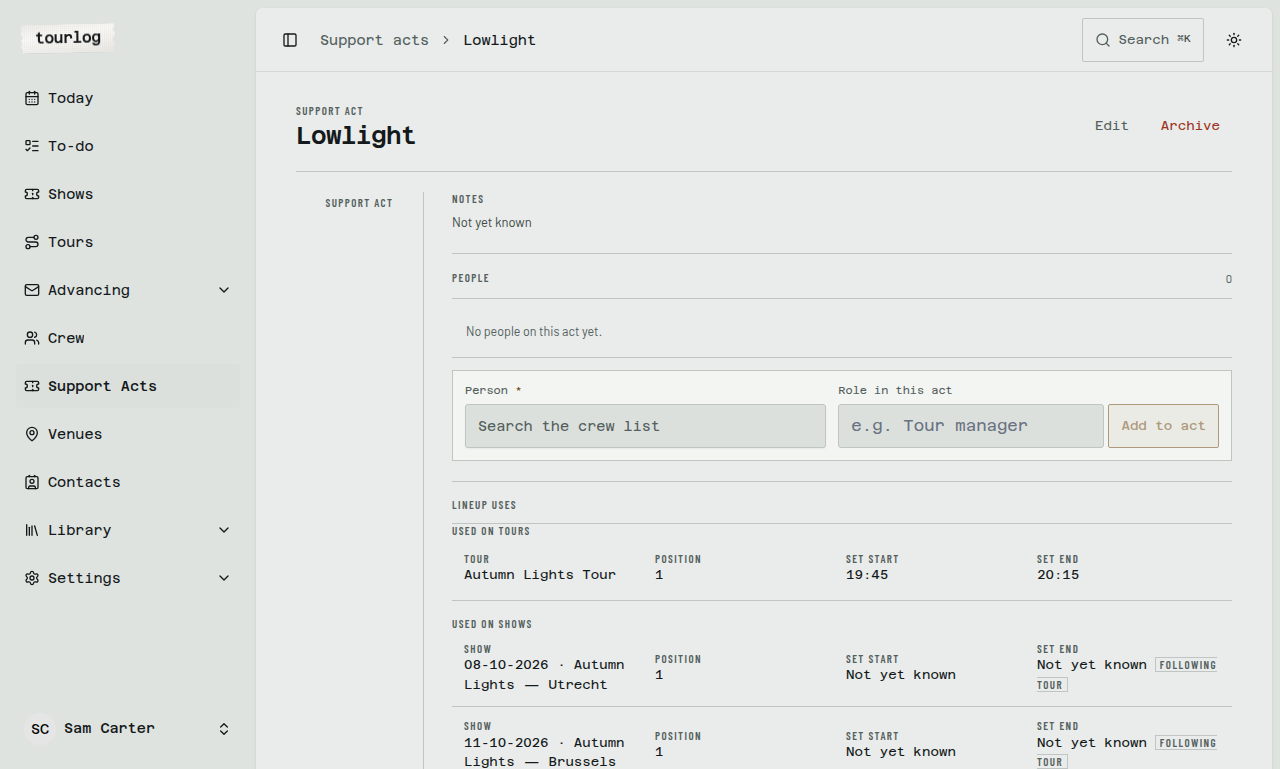
The Lineup uses section lists the tours and shows the act is on, with position and set times.
Venues
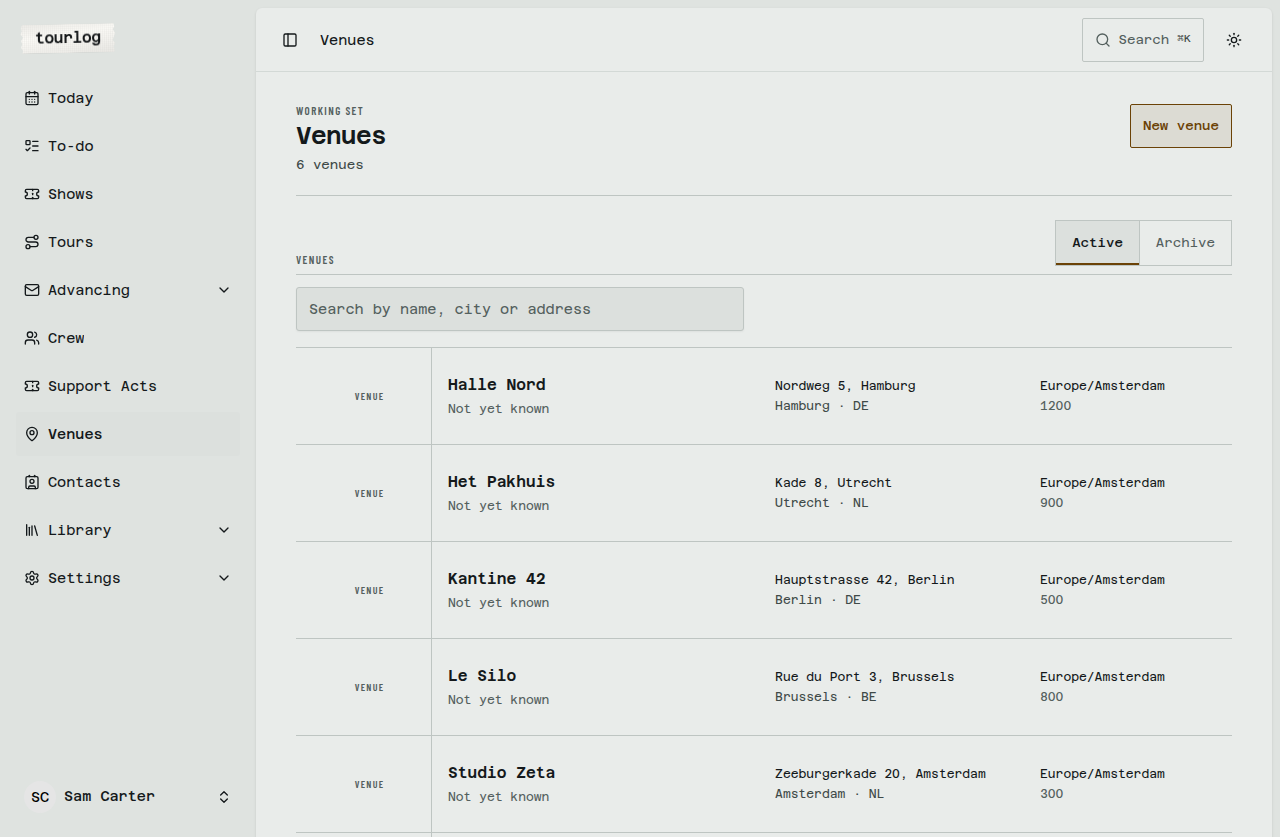
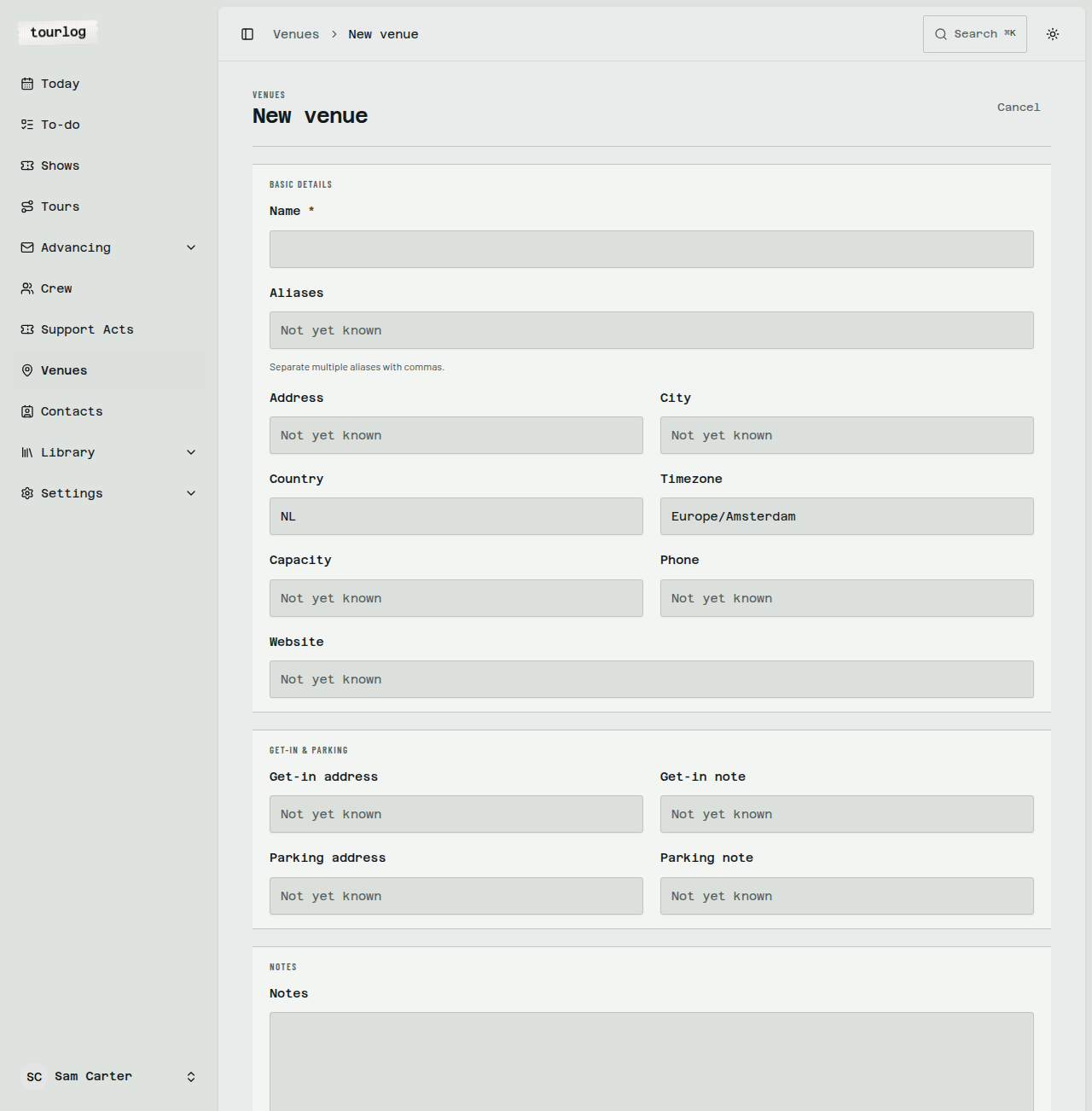
How to: add a venue
- Open Venues and tap
New venue. - Enter
Name,CityandCountry. - Enter the
Address. - Check the
Timezone. The default isEurope/Amsterdam. - Fill in
Capacity,PhoneandWebsiteif you have them. - Fill in the
Get-in addressand note, and theParking addressand note. - Save.
A venue's page
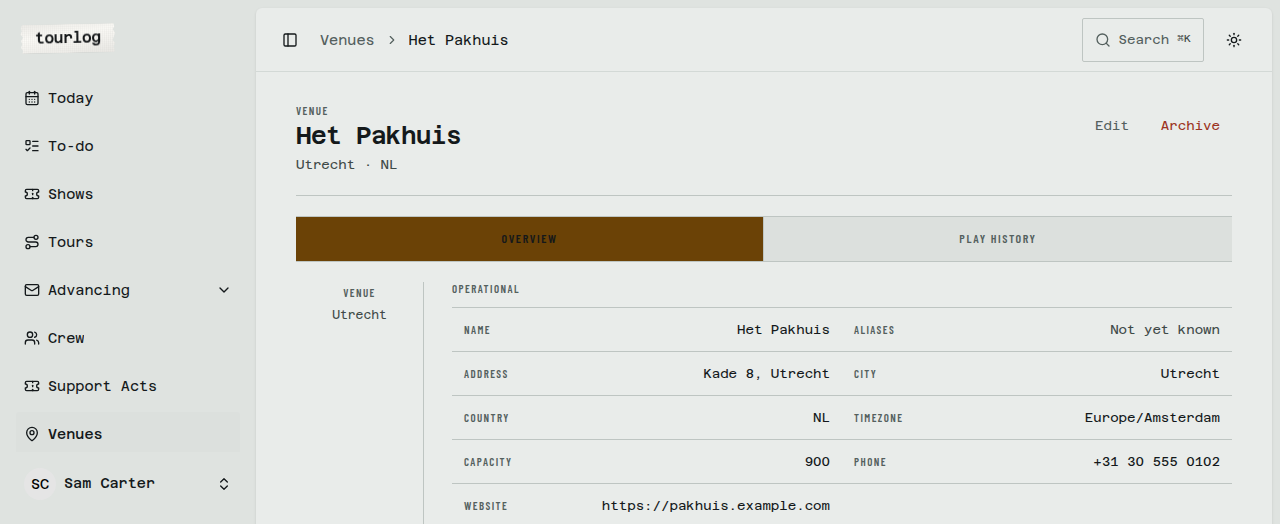
Two tabs: Overview, and Play history (every previous show there). A Navigate link opens driving
directions. Crew get Google Maps and Waze buttons.
Tip:
Aliasesare the other names a venue goes by. They help match incoming mail and CSV rows to
the right venue.
Tip: The timezone lives on the venue. Every time on a show is displayed in it, so set it correctly
for venues abroad.
A website like venue.nl is saved as https://venue.nl.
Contacts
Anyone you might need to phone.
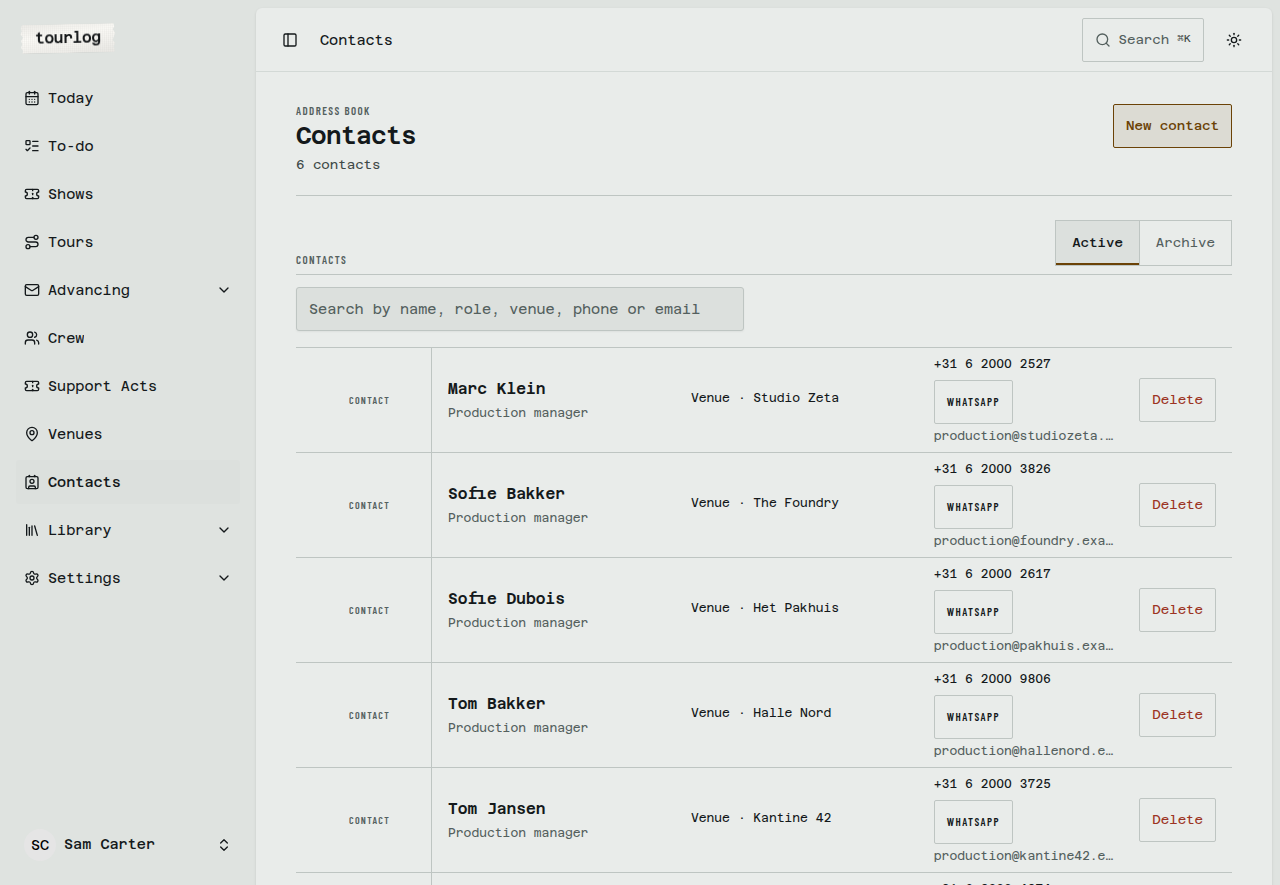
How to: add a contact
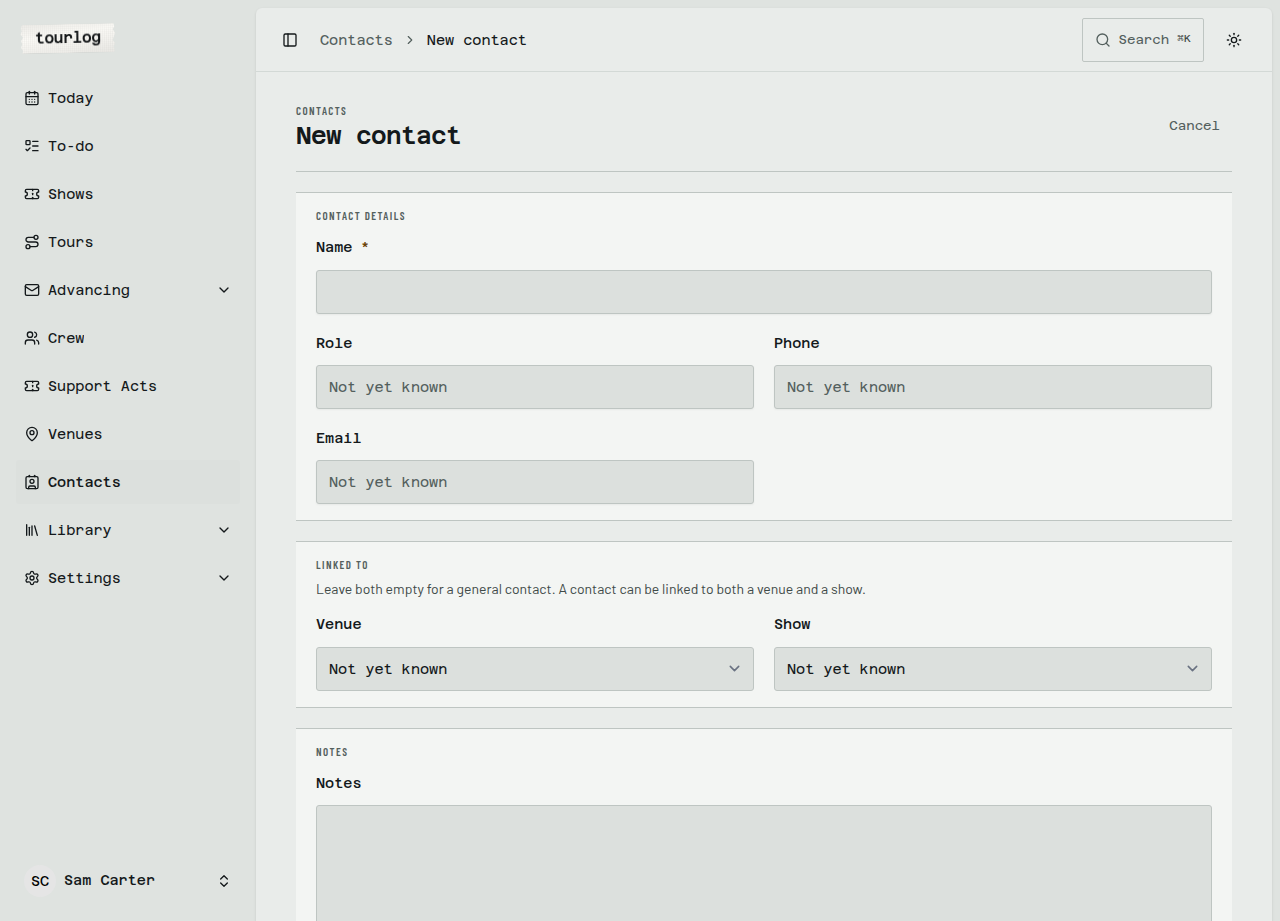
- Open Contacts and tap
New contact. - Enter
NameandRole(for exampleProduction manager). - Enter
PhoneandEmail. - Under
Linked to, choose a venue, a show, both, or neither (a general contact). - Save.
Crew see every contact linked to their show and its venue, each with Call and WhatsApp. Use search to
find a contact by name, role, venue, phone or email.
Archiving and restoring
Crew, acts, venues, tours and contacts all have an Archive button and an Active / Archive switch on
their list. Archived records disappear from pickers but stay on the shows they were already on.
Restore brings them back. Delete permanently exists only in the archive view and is refused while
something still depends on the record, for example a venue that still has shows.