Tourlog guide
The show page
Open any show from Shows or Today. The header carries the show's name, date and venue, plus
Edit show and Archive. Nine tabs sit underneath:
Overview · Venue · Schedule · Advancing · Guests · Documents · To-do · Share
Overview
Everything about the show on one page.
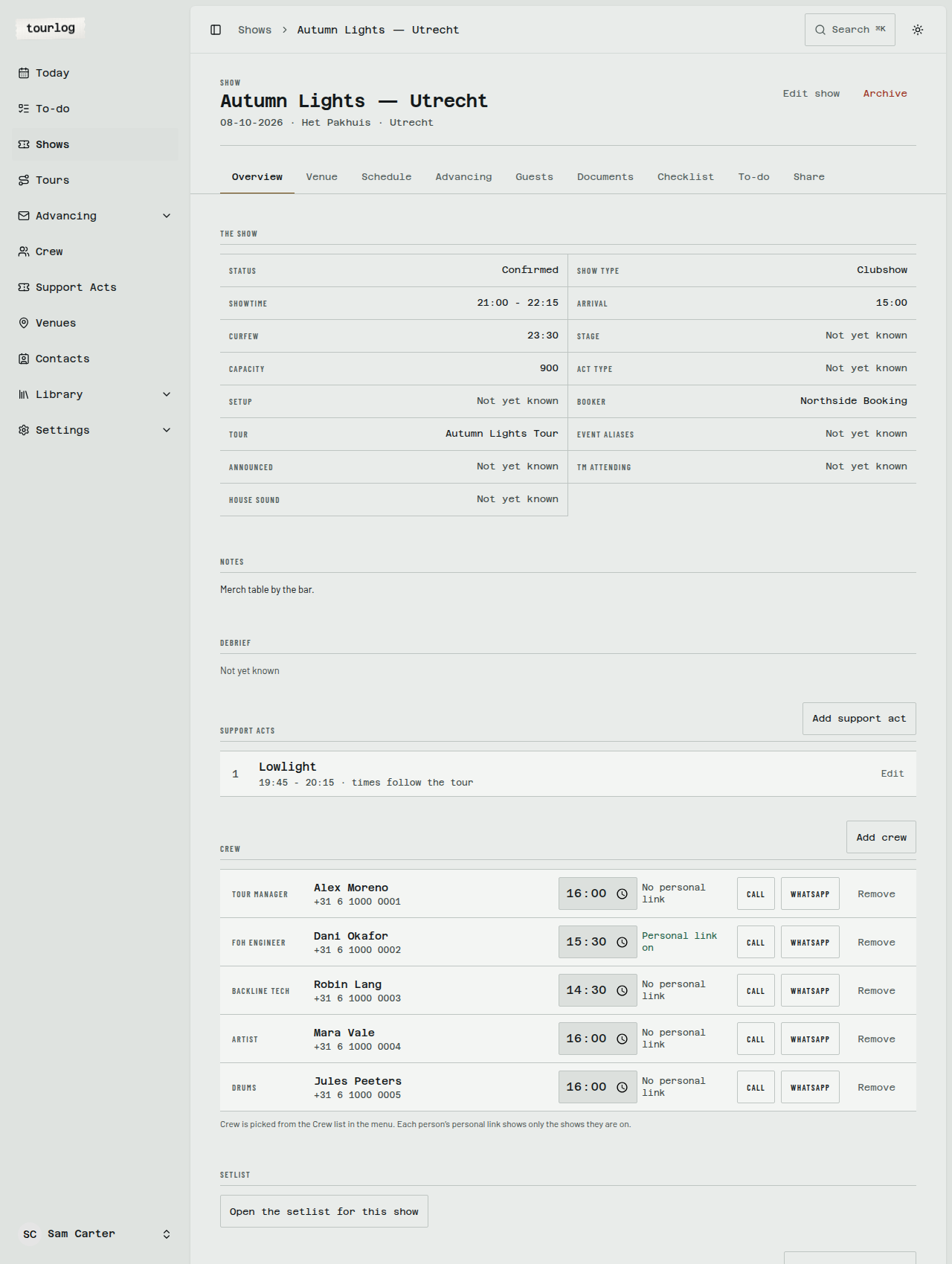
What you'll see
- The show: status, show type, showtime, arrival, curfew, stage, capacity, act type, setup,
booker, tour, event aliases, announced, TM attending and house sound. Anything unknown saysNot yet known. - Notes and Debrief: your own words before and after the show.
- Support acts, Crew, Setlist and Stager.
How to: add crew to a show
- On the Overview tab, find Crew and tap
Add crew. - Tick the people you want. You can tick several at once.
- Optionally enter one
Call time (optional, for everyone). - Confirm.
Each crew row then shows role, name, phone, their own Call time, personal-link status, Call,
WhatsApp and Remove. Change a call time and it saves when you leave the field or press Enter.
Remove asks you to confirm with Yes, delete.
Tip: You can only add people who already exist. If someone is missing, tap
Open Crew to add someone new, create them, then come back.
How to: add a support act
- Under Support acts, tap
Add support act. - Choose the act.
- Choose
Times follow the tour, orSet the times on this show insteadand enter set start and end. - Save with
Save support act.
A set time creates a Set: {act} row in the schedule. Archive removes an act from this show.
Venue
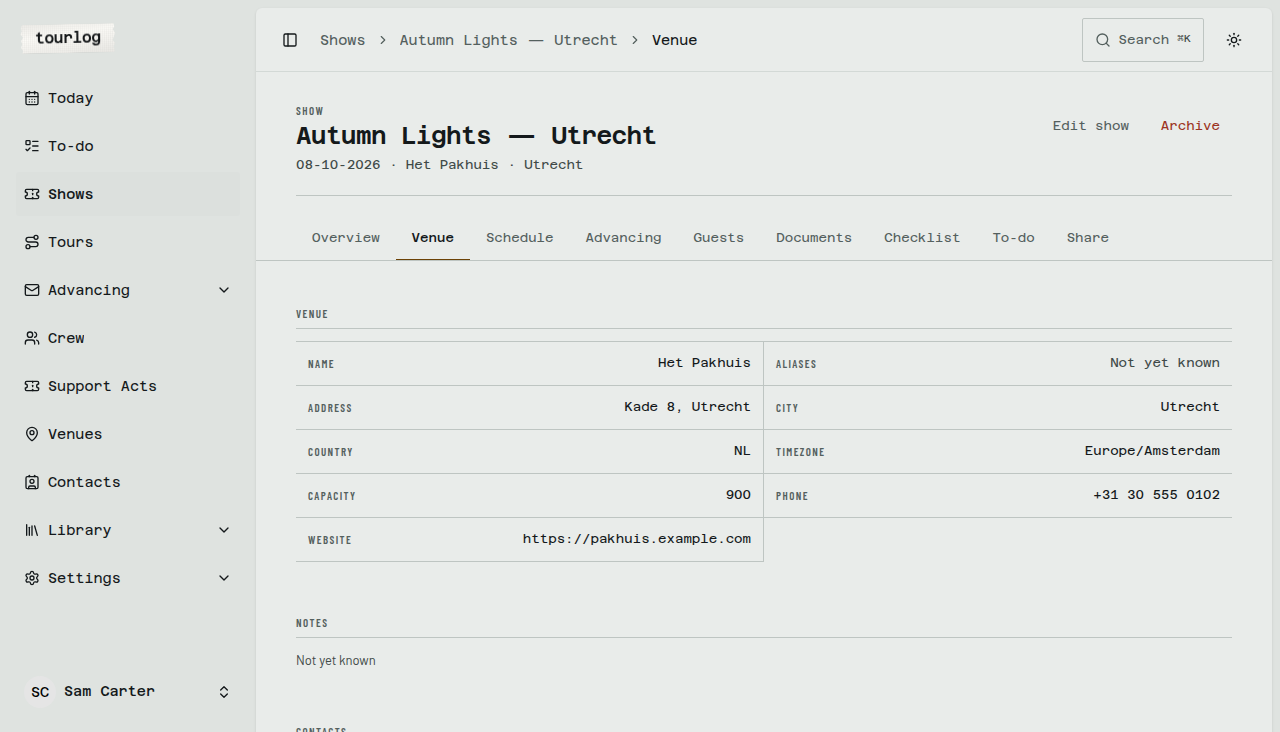
The venue's facts, notes and contacts, with Call and WhatsApp buttons.
Schedule
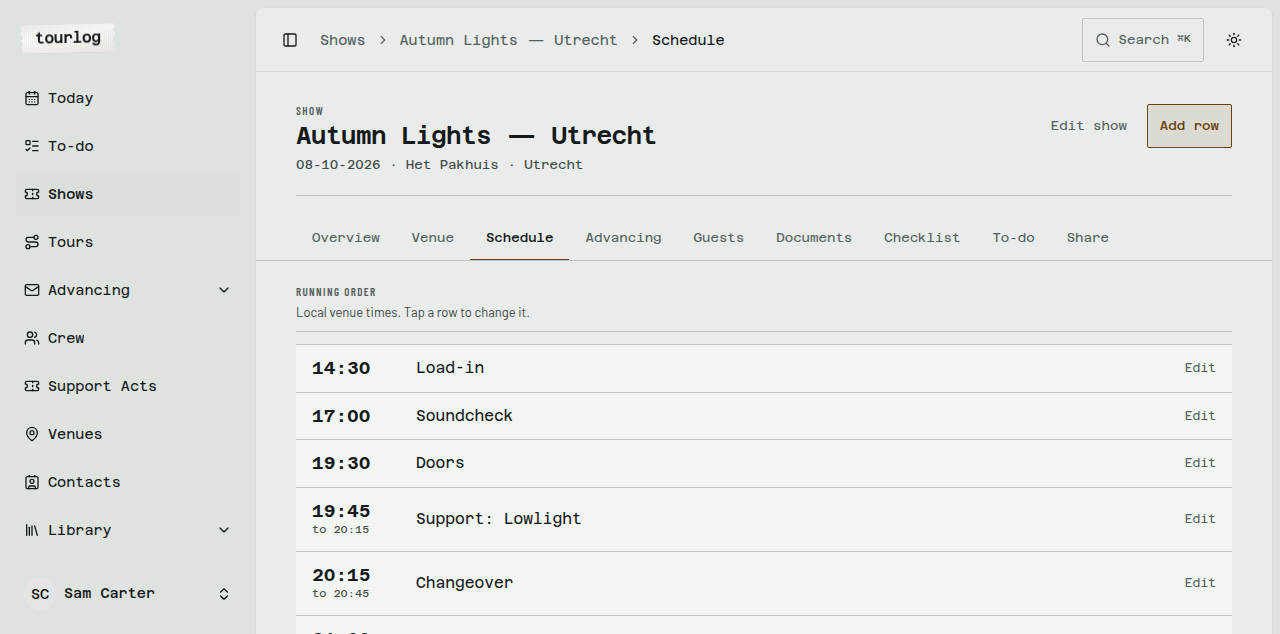
The running order in the venue's local time.
What you'll see
Rows sorted by time. Each has Activity, Start, End, and the crew tagged on it. A time can be
Not yet known, or TBC / 14:00 (TBC) when the venue itself said "to be confirmed". Those two mean
different things.
How to: add a row
- Tap
Add row. - Enter the
Activity(for exampleSoundcheck). - Enter
Startand, if known,End. - Under
Who is this row for?, tag the crew it concerns. Only people already on the show appear. - Tap
Save row.
How to: start from a template
- On an empty schedule, tap
Insert template running order. - Adjust the rows that came in.
The template depends on the show type (clubshow, festival, or a general set). Edit templates under
Settings › Templates (see Settings).
Other things to know
- To change a row, tap it.
Delete rowasksYes, deleteand takes the row out of the running order.
It stays in the archive underneath. - Support acts add their own
Set: {act}rows. - Exactly one row is the showstart. It drives the "Showtime" your crew see.
- Times are 24-hour.
Tip: Tag crew on the rows that matter to them. Their own rows are highlighted on their phone.
Advancing
Where you see what is still missing from this show and what the venue has told you. See
Advancing.
Guests
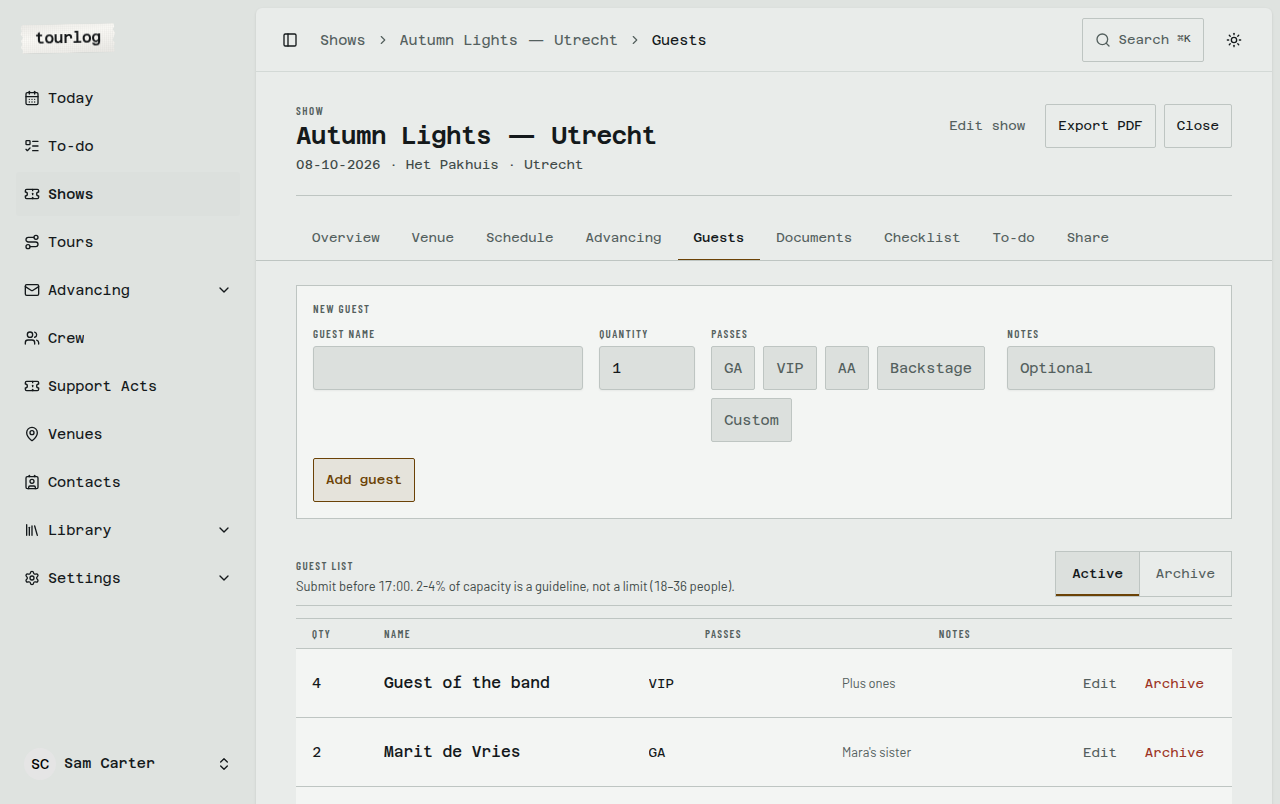
The guest list for this show.
How to: add a guest
- Tap
New guest. - Enter
Guest nameandQuantity. - Tick the
Passes:GA,VIP,AA,Backstage, orCustom(a label is then required). - Add
Notesif useful. - Save.
You get a Total. You can edit, archive or restore entries. Export PDF makes a door-ready list with a
tick box per guest.
Documents
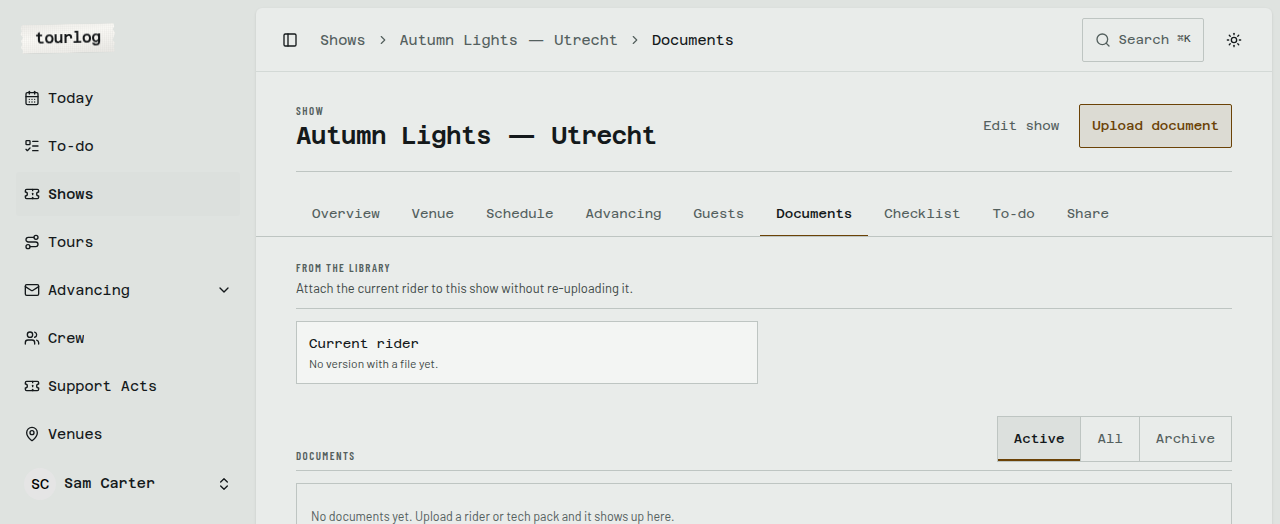
Files for this show: riders, technical specs, run sheets. See Library and documents.
To-do and Notepad
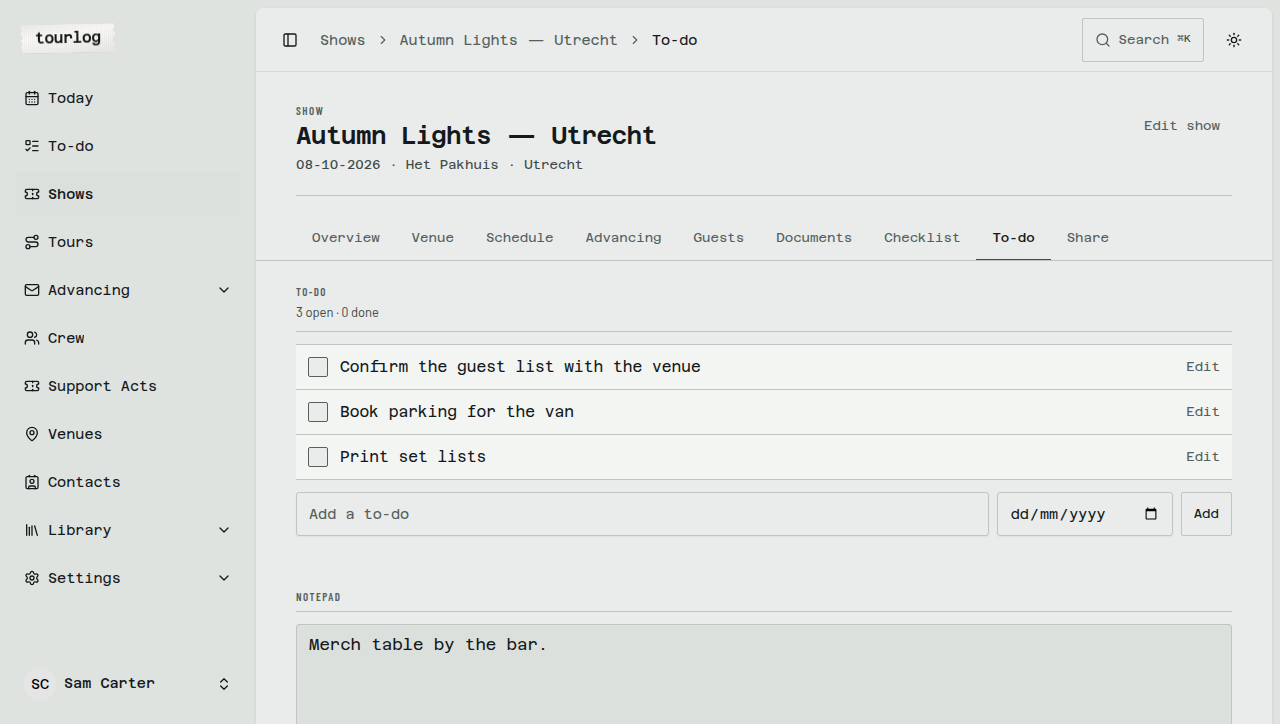
- To-do: lines for things you must do for this show. Type in
Add a to-doand save. Tick a line to
finish it. An optionalDuedate makes a line show up on Today as it comes due, andoverdue
once it has passed. The header saysn open · n done; done lines fold away. - Notepad: free text that
Saves as you type. Only you see this.
Neither to-dos nor the notepad is ever shown to crew or venues. The To-do page in the sidebar
gathers them across shows.
Share
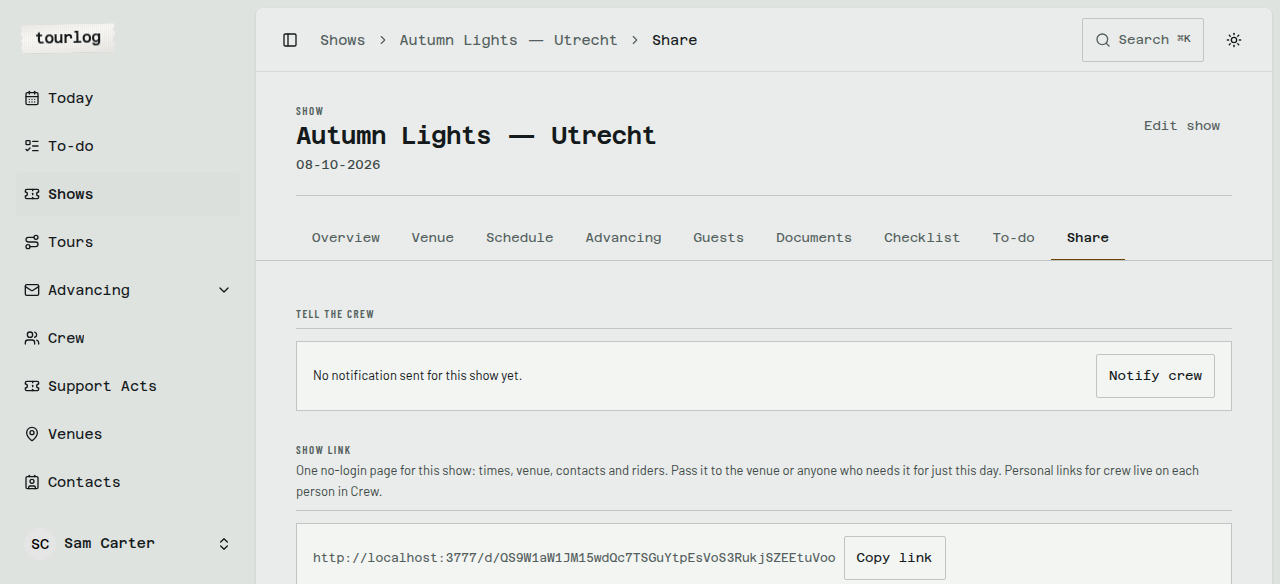
Links for crew and venues, and the Notify crew button. See Sharing.
Archived shows
An archived show shows This show is in the archive. Everything here is read-only until you restore it. Restore it from the show list's Archive view.