Tourlog guide
Getting started
Accessing Tourlog
- Address: your Tourlog installation's web address. Your administrator gives you this.
- Browsers: current Chrome, Firefox, Safari and Edge.
- Phones: designed for a 375px-wide screen. There is no app to install, so use the browser.
Signing in
- Open your Tourlog address and go to
/sign_in. - Enter your
Email. - Enter your
Password. - Tap
Log in.
You stay signed in for up to 30 days, so expect to sign in again about once a month. A session that
has been idle for 30 days is logged out.
Forgot your password? Tap
Forgot your password?on the sign-in page and enter your email.
Tourlog sends a link where you choose a new password.
Tourlog has one admin account and no sign-up page. Crew and venues don't need accounts. See
Sharing.
The welcome
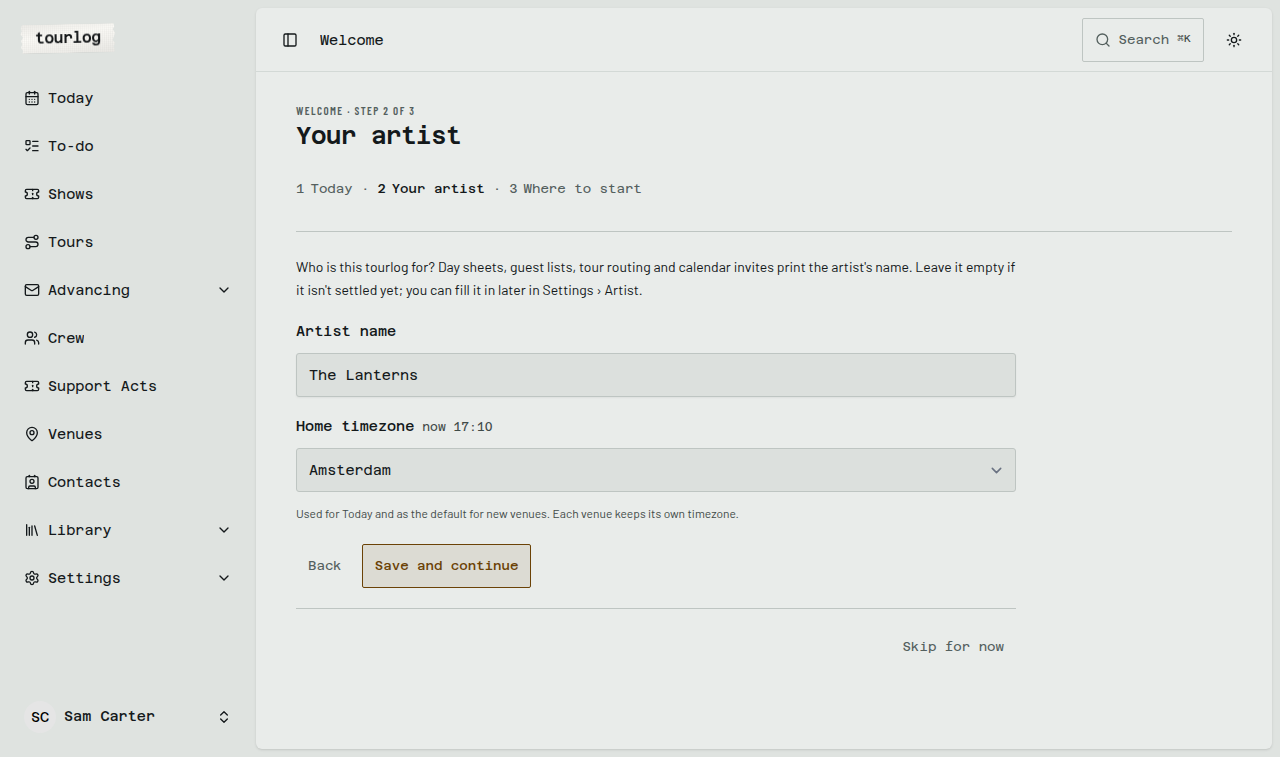
The first time you sign in, Tourlog opens a short welcome in three steps. Tap Skip for now on any step
to go straight to Today; you can open it again later from Settings › Artist.
- Welcome to tourlog shows what the Today page tells you: your next show, what is still unknown,
to-dos due this week and, if advancing is on, mail waiting in Review. TapNext. - Your artist: type the artist's name and choose your home timezone, then tap
Save and continue.
The name goes on day sheets, guest lists and calendar invites. Leave it empty if it isn't settled yet. - Where to start:
Add a show,Import showsfrom a spreadsheet, orRead the guide. TapFinish
to go to Today.
Advancing from mail is optional. Set up a mailbox in Settings › Advancing, or leave it off and
fill in shows by hand.
Finding your way around
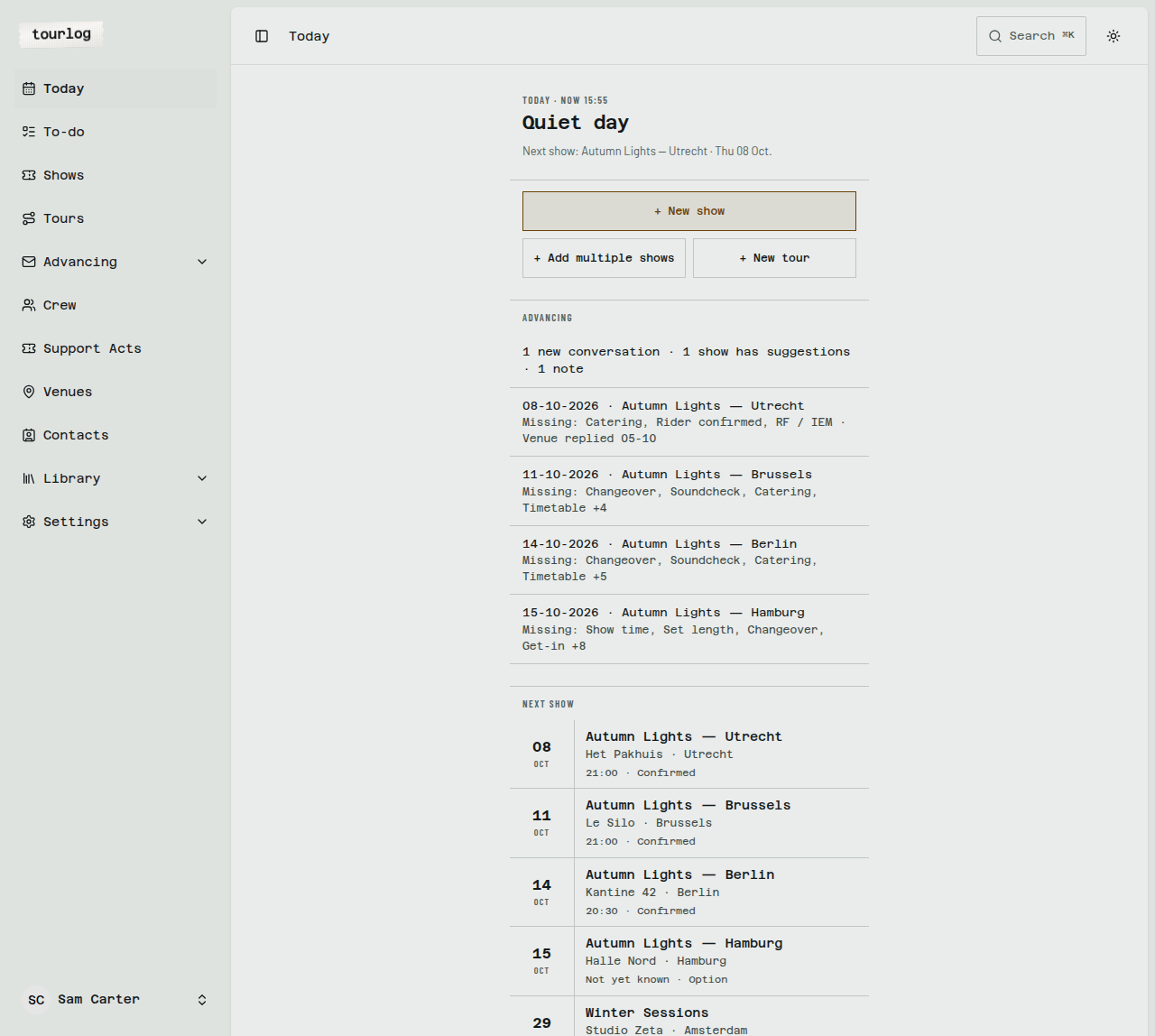
The sidebar holds everything. It collapses to icons when you tap the panel icon at the top.
| Sidebar item | What it is |
|---|---|
| Today | What is happening now and what is coming up |
| To-do | Every show's to-do lines and notepad in one list |
| Shows | The season |
| Tours | Optional groups of shows |
| Advancing | Review (what needs your decision) and Documents |
| Crew | The people who travel |
| Support Acts | Opening acts and their people |
| Venues | Rooms, with address, timezone and play history |
| Contacts | Bookers, production managers, anyone you call |
| Library | Riders and Setlists |
| Settings | Account, Artist, Health, Advancing, Templates |
At the top:
- Breadcrumbs show where you are (for example
Shows › Autumn Lights — Utrecht › Advancing). - Search opens quick search.
- The sun icon switches
Light,DarkorSystem. - At the bottom of the sidebar, your name opens
SettingsandLog out.
Quick search
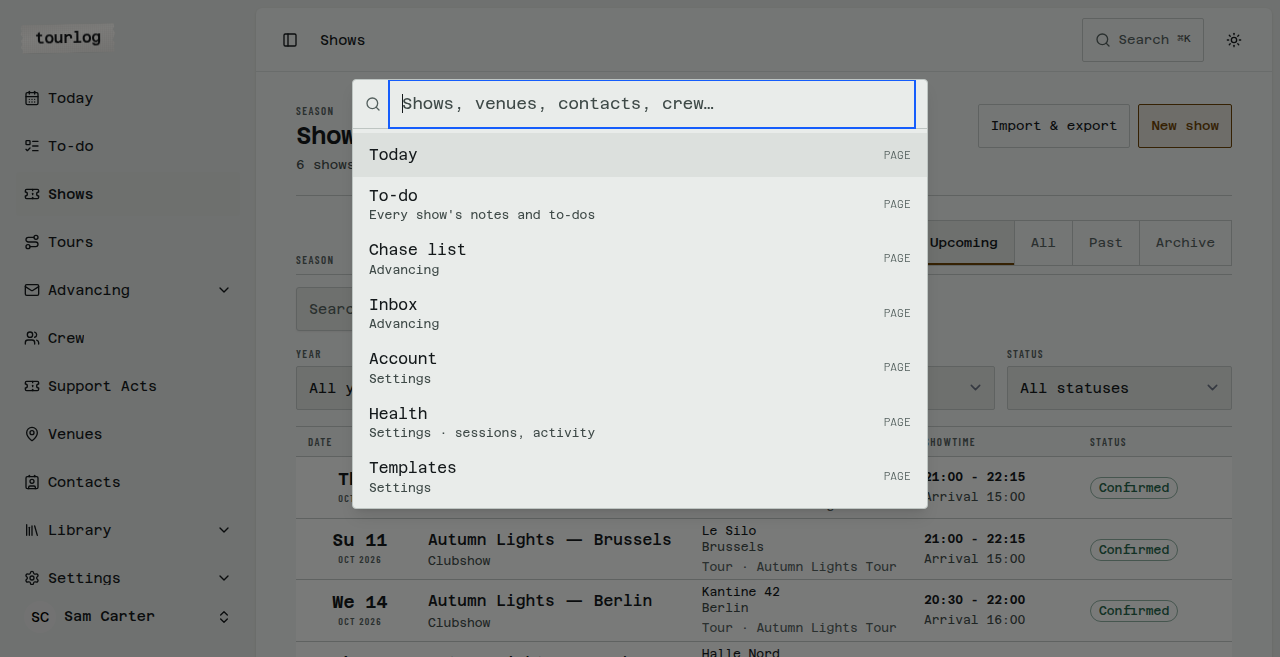
Press ⌘K (Mac) or Ctrl+K, or tap Search. Type part of a name to jump to a show, venue, contact,
crew member, support act or page.
Active and Archive
Lists that can hold archived records have an Active / Archive switch. The show list has
Upcoming, All, Past and Archive.
Light and dark
Dark is the default. Use the sun icon, or Settings › Account › Appearance.
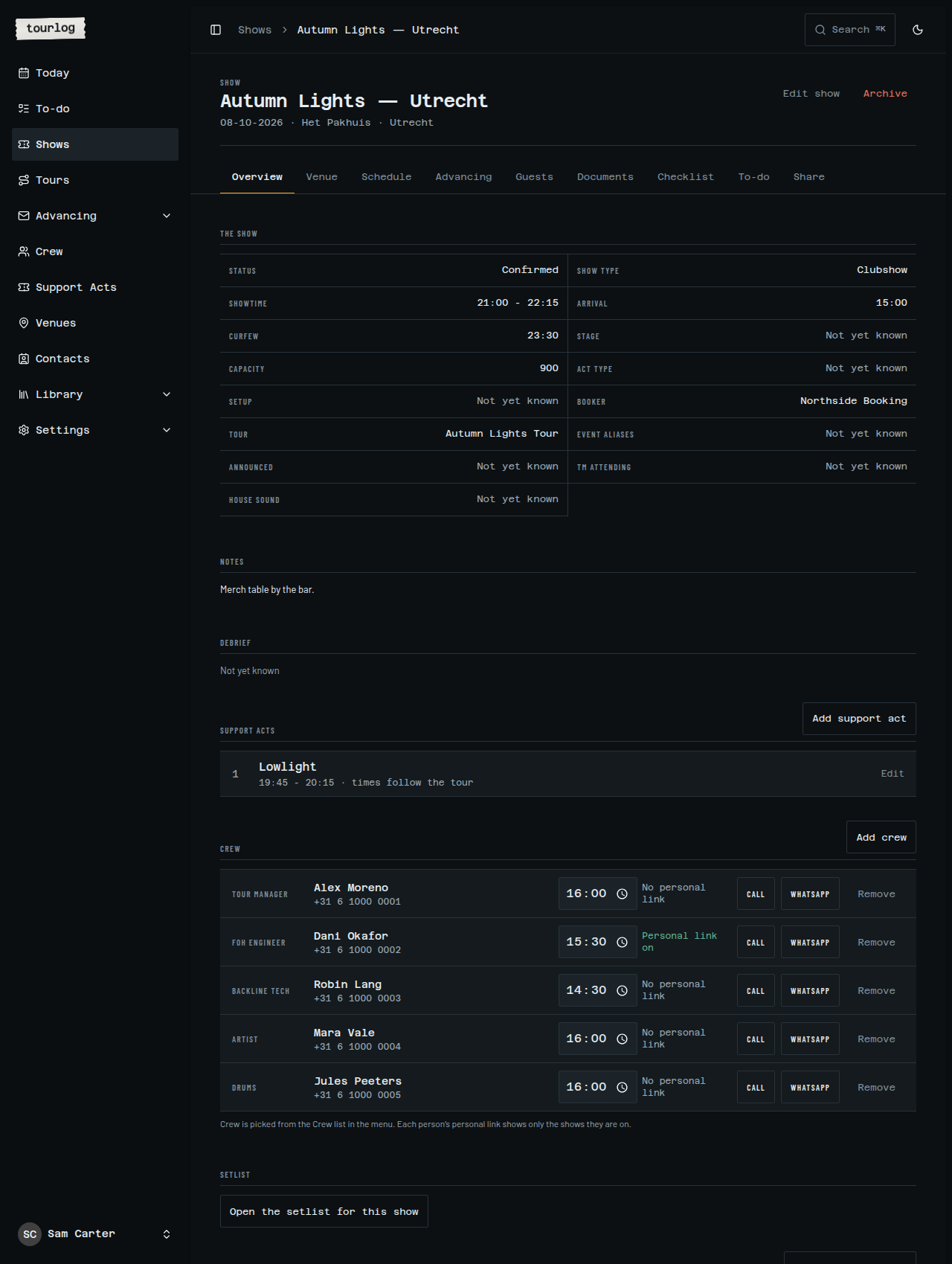
On your phone
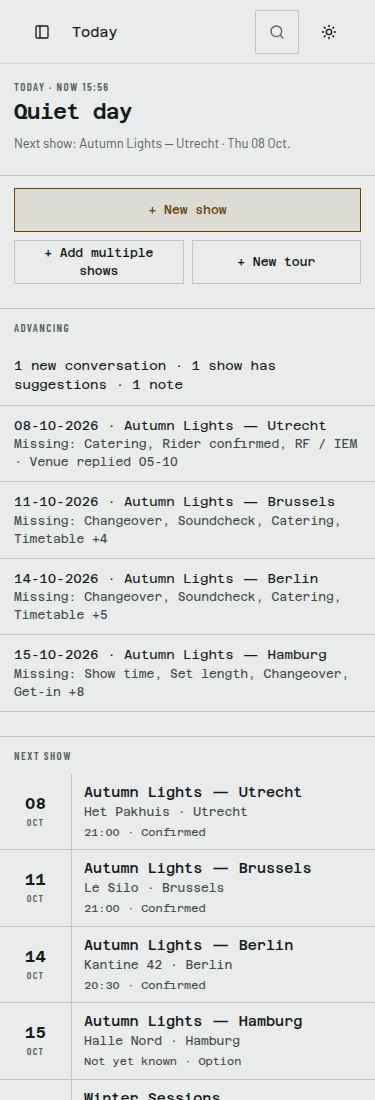
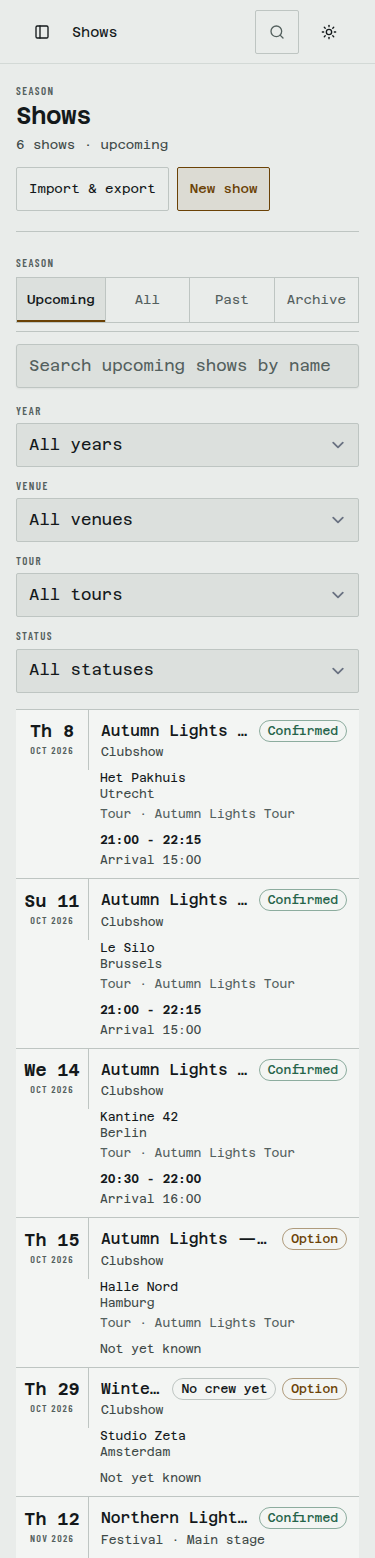
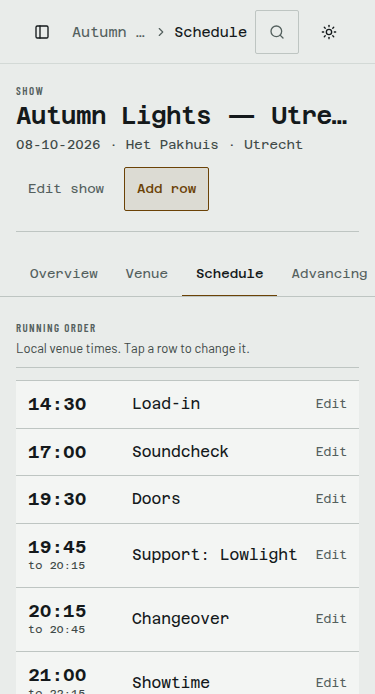
On a phone the sidebar becomes a menu. Everything is reachable with a thumb, and touch targets are at
least 44px.
| Shows | A show | Schedule | Review |
|---|---|---|---|
 |
 |
 |
 |
How Tourlog is organised
- A show is the centre of everything: date, event name, venue, show type and status, plus times,
crew, schedule, guest list, documents, advance and to-do. - A venue is reused across shows. It owns the timezone, so every time on a show is shown in
the venue's local time. The default isEurope/Amsterdam. Change it on the venue when you play
elsewhere. - Crew and support acts are pools. You create a person or act once, then put them on shows.
- A tour is an optional container. Shows can exist without one.
- A show has a status:
Option,Confirmed,CompletedorCancelled.
Four things are required on every show: date, event name, venue and show type.
Several shows on the same date is fine.
Your first 5 minutes
Do these in order the first time.
- Add the people. Go to Crew and tap
New person. EnterName,Roleand a phone number
or email. Repeat for everyone who travels. See Crew. - Add a venue. Go to Venues and tap
New venue. Fill in address, city, country and timezone
once. Every future show there reuses it. - Add a show. On Today, tap
+ New show. Fill inDate,Event name,Show typeand the
Venue, tick the crew, and tap save. See Shows. - Check the schedule. Open the show's Schedule tab. If you see
No schedule yet, tap
Insert template running order. - Send a crew member their link. Open the person under Crew, tap
Create personal link,
thenCopy link. Send it. They see their call time and the day sheet.
If you have a whole season in a spreadsheet, skip step 3 and use Importing.
Tip: Create crew and venues before shows. The show form can only tick people who already exist.
Tip: Don't worry about empty fields.
Not yet knownis meant to be there until it isn't.
Keyboard shortcuts
| Shortcut | Where | What it does |
|---|---|---|
⌘K / Ctrl+K |
Anywhere | Open quick search |
Tab |
Add several at once | Move to the next field |
Tab from the last field |
Add several at once | Add a new row |
⌘Enter / Ctrl+Enter |
Add several at once | Create all rows |
Enter or leaving the field |
A crew member's call time | Save it |