Tourlog guide
Sharing and the crew reader
Crew and venues never log in. They open a link and read a clean, one-column day sheet. It is designed
for a phone and updates as you edit.

Two kinds of link
| Link | You make it on | What the person sees |
|---|---|---|
| Personal link | Crew › the person | Their next shows, their own call times, their calendar |
| Show link | The show's Share tab | One show's day sheet, for a venue or any one-off reader |
Anyone who holds a link can read what it shows, so share links only with the people they are for.
Personal links for crew
How to: create and send a personal link
- Open Crew and tap the person.
- Tap
Create personal link. - Tap
Copy link. - Send it in a message.
One link covers every show that person is on, now and in the future. You don't need to send a new one
per show.
How to: revoke a personal link
- Open the person under Crew.
- Tap
Revoke link. - Confirm with
Yes, revoke.
They lose access immediately.
Tip: The link shows only that person's shows. If someone leaves the team, revoke their link.
Show links for venues and one-offs
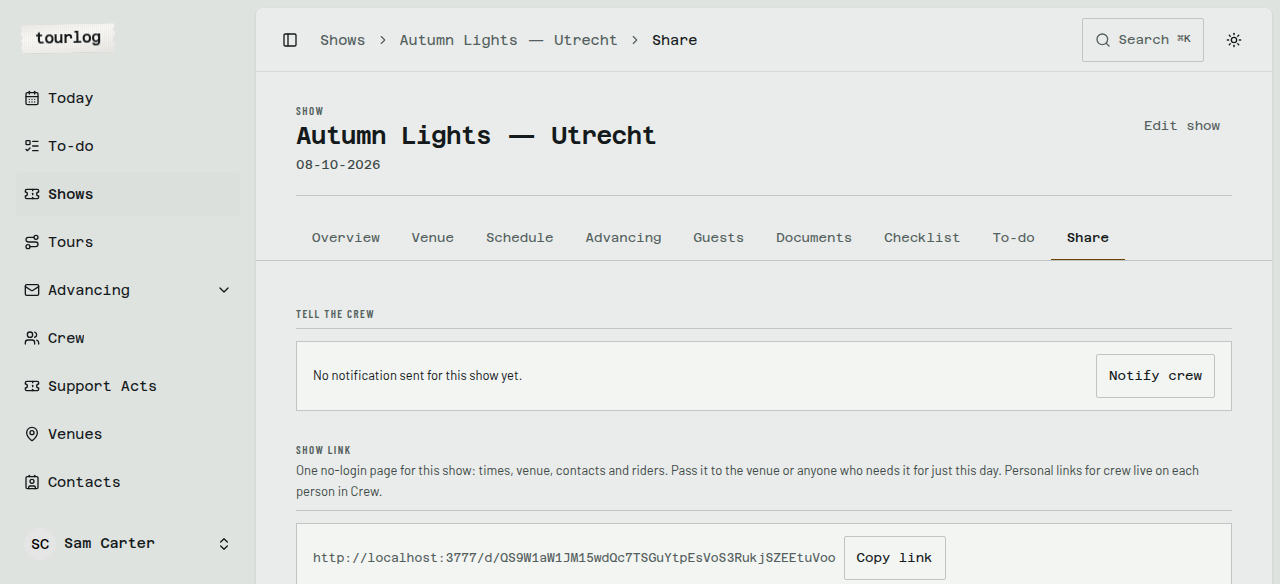
How to: create a show link
- Open the show and choose the Share tab.
- Tap
Create show link. - Tap
Copy linkand send it.
A show link can only be made for a Confirmed or Completed show. For an Option the page says A show link can be made once the show is confirmed. Set the status to Confirmed on Edit show.
How to: revoke a show link
Tap Revoke link, then Yes, revoke. Anyone holding this link loses access.
A revoked or unknown link, or a link to a show that is an Option or archived, answers with a plain empty
page. There is no message and no login prompt.
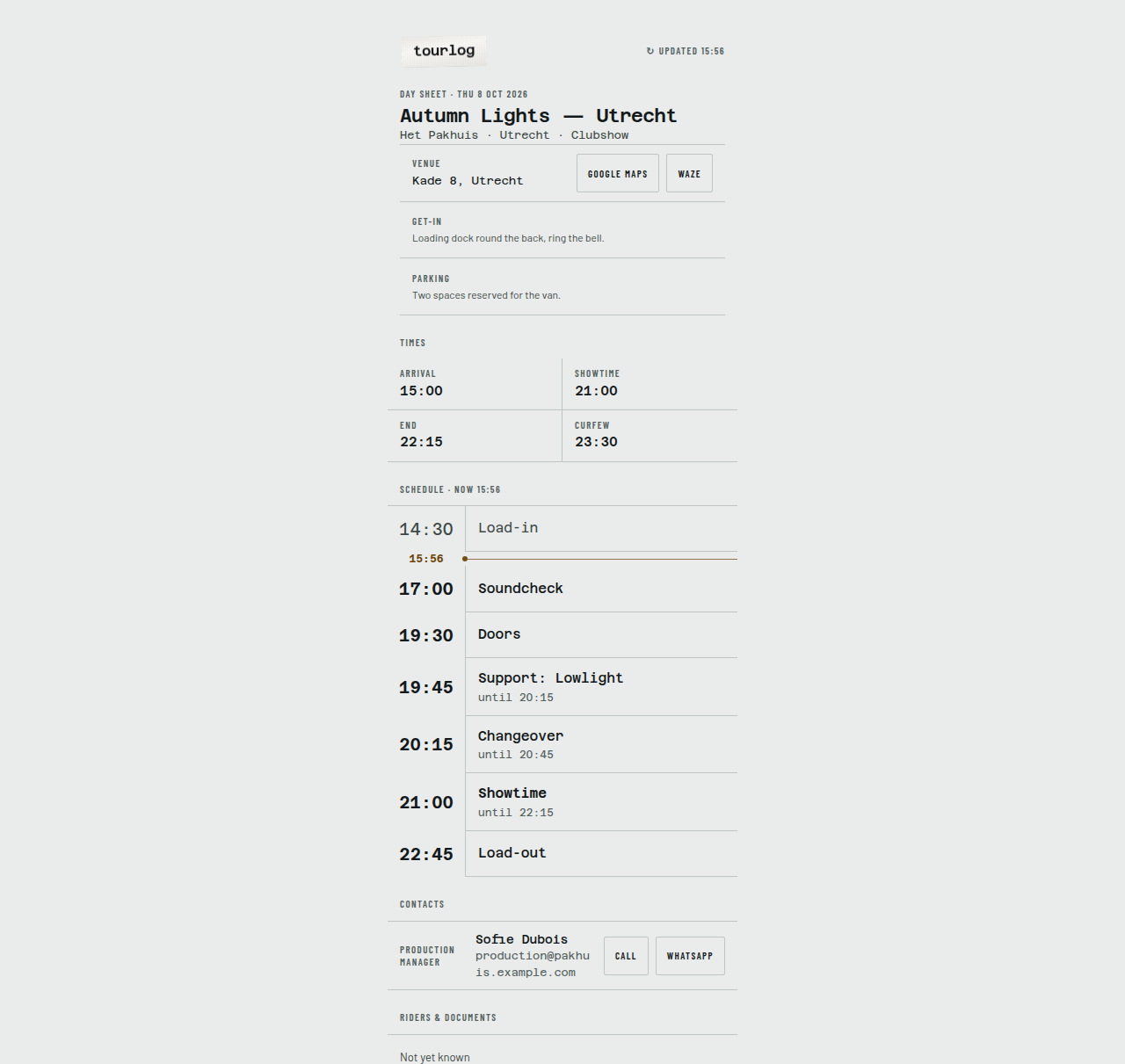
What a show link shows
Times, venue, schedule, contacts, riders and documents marked Visible to crew. Footer buttons give
Calendar (.ics) for that one show and Export PDF for the day sheet.
It never shows notes, debrief, booker, capacity, production notes or any internal flag.
Telling the crew when something changes
- Open the show's Share tab.
- Under Tell the crew, check the status line. It says whether anything changed since the last
notification. - Tap
Notify crew.
Everyone on the show who turned notifications on gets Day sheet updated — {venue} {date}. If nobody
has notifications on, Tourlog says Nobody has notifications on — share via WhatsApp.
Tip: Don't send a notification for every tiny edit. Make your changes, then notify once.
What crew see
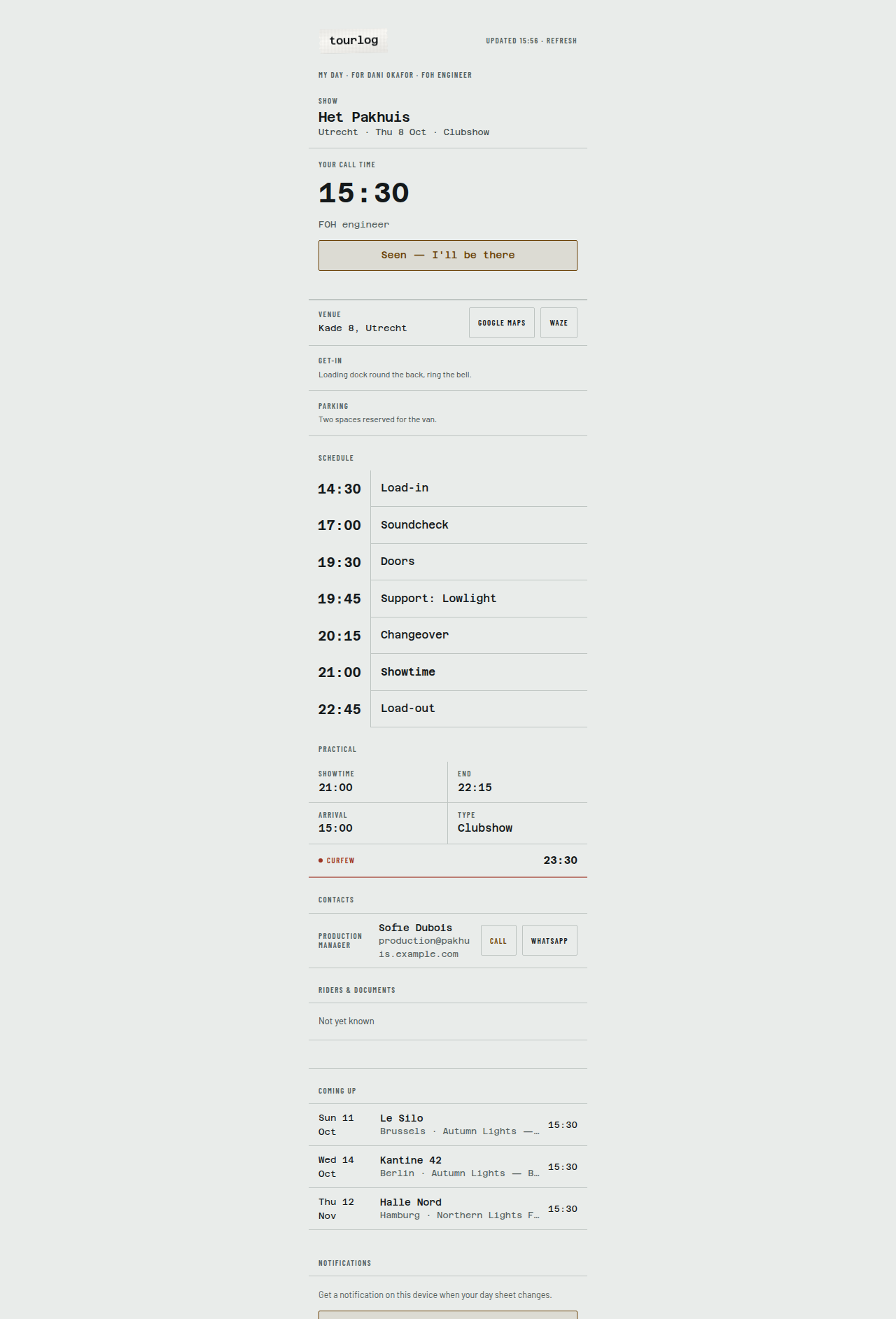
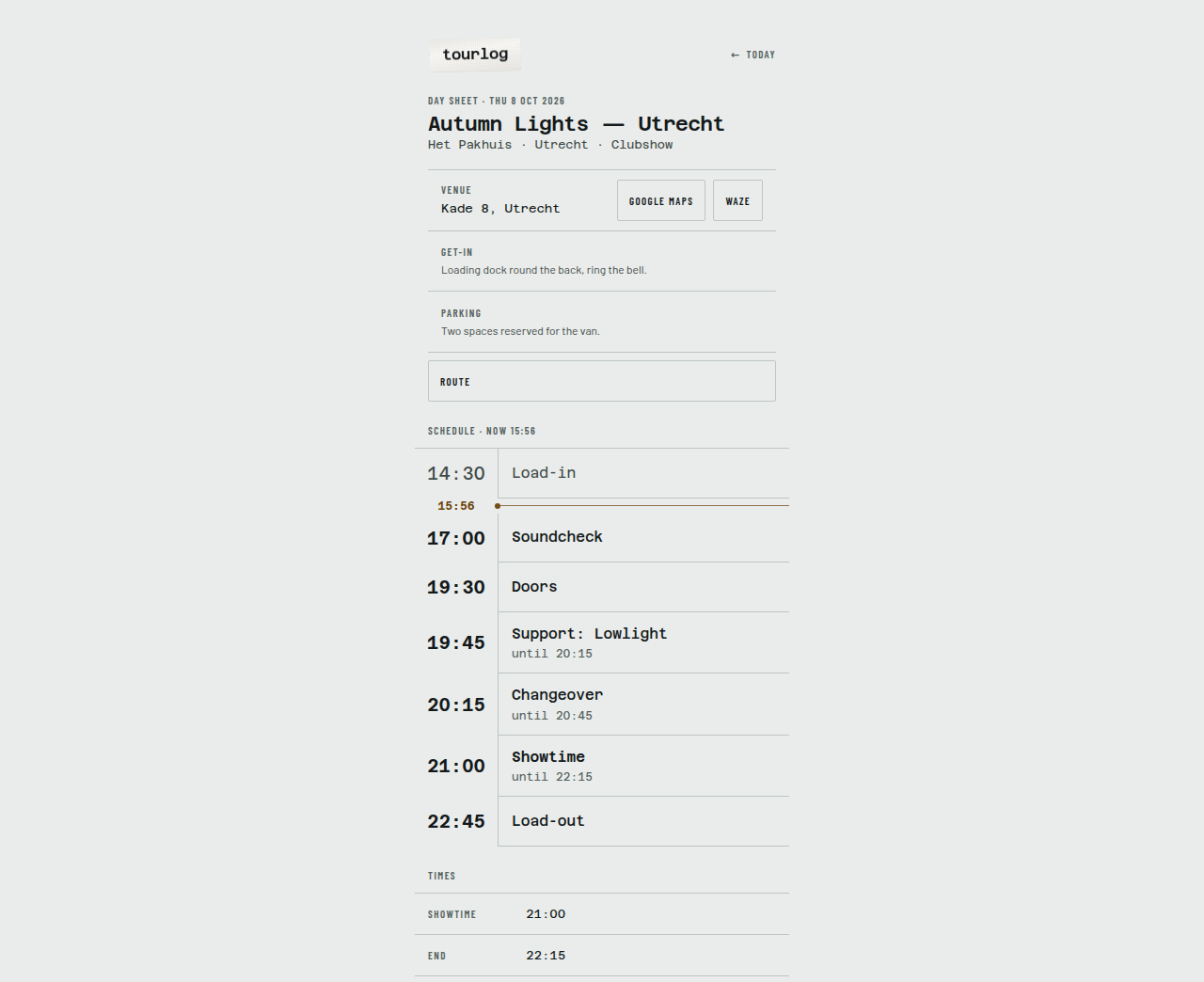
On their phone, per show:
- Your call time, large, at the top.
- The venue, with
Google MapsandWazebuttons. - Get-in and Parking notes. The addresses appear only when they differ from the venue's.
- The Schedule, with their own rows marked
youand past rows dimmed. - Practical: showtime, end, arrival, type, and the curfew in red.
- Contacts with
CallandWhatsApp. - Riders & documents to download.
- Coming up: their next shows.
What crew can do
- Tap
Seen — I'll be there. It turns intoConfirmed ✓ 13:02withUndo, and you see the
confirmation on the Overview tab. - Tap
Turn on notificationsto be told when the day sheet changes, andTurn offto stop. - Tap
Subscribe to calendarto get a live calendar feed of every show they are on.
Tip: The calendar subscription works in Safari. In WhatsApp's built-in browser it says
Open in Safari to subscribe to your calendar.
What the calendar feed contains
Options appear as tentative (Option — …), confirmed and completed shows as normal events. Cancelled
shows never appear. The feed covers the last three months and everything ahead. A show with no time is an
all-day event.
Cancelled shows
A cancelled show says This show is cancelled. The details below are no longer valid.
Day sheet preview for you
Preview the same sheet from Today with Open day sheet →, or from a show.
On a phone